
Why Signal won't send your photos or videos, and how to fix it
Published: October 7, 2026 · Updated: October 8, 2026
When Signal can't send photos or videos, the cause is almost always one of four things: missing media permission, not enough free storage, a file that's too large, or a weak connection that can't finish the upload. Text messages send fine because they're tiny. A photo or video needs permission to be read, space to be processed, and a solid upload. Run the checklist below in order and you'll find your cause in a few minutes.
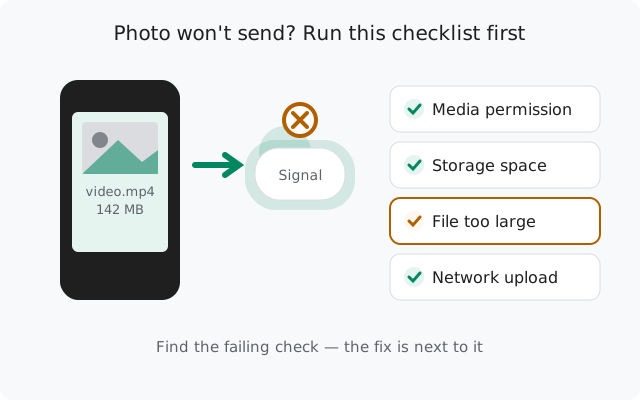
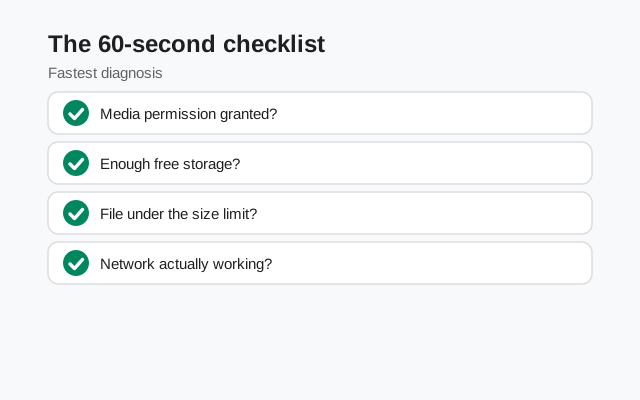
The 60-second checklist
Most media failures are fixed by these four checks. Do them in order before anything else:
Grant full media permission
Settings → Apps → Signal → Permissions → Photos and videos → Allow all. On Android 13 and newer, partial access ("Select photos") can make specific photos fail silently. Details in permissions.
Free up storage
If your phone has less than ~1 GB free, Signal may fail to process and attach media. Delete downloads, clear app caches, or move files off the phone.
Shrink the file
Long or 4K videos are the classic failure. Trim the video in your gallery app or send a shorter clip first to test. See file size.
Fix the connection
Toggle airplane mode on and off, then try again on a different network (Wi-Fi vs mobile data). Uploads die on weak connections while text still sends.
If none of those fix it, the diagnostic table below matches your exact symptom to the cause.
Diagnostic table: symptom to fix
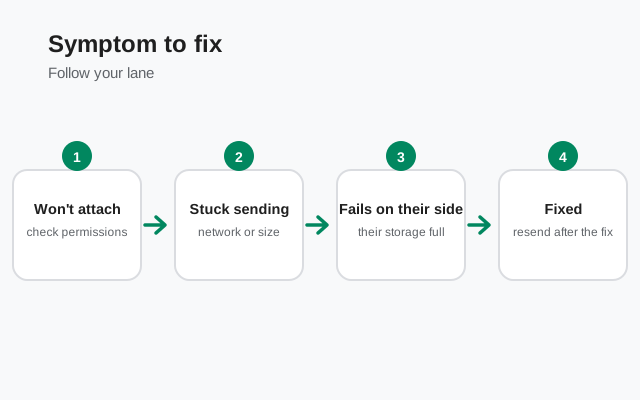
| What you see | Likely cause | Fix |
|---|---|---|
| Photo picker opens but chosen photos never attach | Partial media permission | Grant "Allow all" under Photos and videos |
| Camera works inside Signal, gallery attach fails | Permission gap (camera allowed, media not) | Same fix: allow full media access |
| Short clips send, long videos spin forever | File too large / weak upload | Trim the video, try a stronger network |
| "Couldn't process attachment" error | Low storage or corrupt file | Free up space, test the file in your gallery |
| Text sends fine, every photo fails | Storage or permission | Work through the checklist |
| Media sends to one person, fails to another | Their side (old app, dead session) | Recipient-side fixes |
| Everything fails after an update | Corrupt install or old build | Update to the latest build, clear cache |
| Only GIFs or one format fail | Format quirk | Convert or re-save the file |
Media permissions
This is the single most common cause, and it trips people up because everything else in Signal works. Since Android 13, apps can ask for partial media access ("Select photos and videos") instead of full access. If you picked "Select photos" during setup, Signal can only see the photos you chose back then. Newer photos simply don't attach, and the app may show nothing useful to explain it.
Fix it properly:
Open app permissions
Go to Settings → Apps → Signal → Permissions → Photos and videos.
Choose "Allow all"
Switch from "Select photos and videos" (or "Don't allow") to Allow all. This is the option Signal needs to attach anything from your gallery.
Check the camera too
While you're there, confirm Camera permission is also allowed if you use Signal's in-app camera.
Restart Signal
Close the app fully (swipe it away) and reopen it so the new permission takes effect.
A telltale sign of the permission problem: the photo picker opens inside Signal but shows an empty gallery, or chosen photos vanish instead of attaching. If the picker works fine, move on to storage.
Storage space
Before Signal sends a photo or video, it processes it on your phone: decrypting your camera output, compressing, encrypting for the recipient. All of that needs working space. When free storage drops very low (roughly under a gigabyte, less on phones with heavy gallery apps), the processing step fails and the send dies.
- Check free space: Settings → Storage. If you're nearly full, that's your answer.
- Clear the easy wins first: old downloads, duplicate screenshots, WhatsApp-era media folders, and cached data from other apps.
- Clear Signal's cache: Settings → Apps → Signal → Storage → Clear cache (not Clear data). Cache is temporary junk; clearing it never touches your chats or contacts. There's a full walkthrough in clearing the cache below.
If storage was the problem, sending usually works again immediately after you free space. No restart needed.
File size and format
Text messages are a few bytes. A 3-minute 4K video can be hundreds of megabytes. There is a practical ceiling on what Signal can attach and upload, and a long high-resolution video is the file that hits it. You don't need an exact number. The rule is simple: if short clips send and long videos don't, the file is too big for the current conditions.
Practical fixes, easiest first:
- Trim it: open the video in your gallery app, cut it down, and send the shorter version. This fixes most cases outright.
- Lower the resolution: your gallery editor or any basic video app can export at 720p instead of 4K, which shrinks the file dramatically.
- Send as a document: attach via the paperclip → document option. Documents send uncompressed, which helps when Signal's media processing chokes on a file, though the file still has to upload.
- Split long videos: two 90-second clips succeed where one 3-minute clip fails.
On formats: Signal handles the common photo and video formats your phone produces. If one specific file refuses to send while everything else works, the file itself is suspect. Convert it (for example, re-export the video as MP4 or the photo as JPEG) and try again. And if a file won't even play correctly in your own gallery, see corrupted files: no app can send a broken file.
Network and upload problems
Here's the pattern people miss: text messages send on almost any connection, but a photo upload needs sustained bandwidth. On a weak or flaky connection, your texts fly while photos spin and fail. That doesn't mean Signal is broken. It means the pipe is too thin.
- Switch networks: if you're on Wi-Fi, try mobile data, and vice versa. One of them usually has a cleaner path.
- Toggle airplane mode: 10 seconds on, then off. This forces your phone to re-establish a fresh connection, which clears stalled uploads.
- Turn off the VPN: VPNs slow uploads and some exit nodes get throttled. Test with it off.
- Move: if you're on the edge of coverage (one bar, basement, elevator), walk somewhere with a stronger signal and retry.
Corrupted or broken files
Sometimes the problem is the file, not Signal. A video that stopped recording mid-crash, a photo from a failing SD card, a download that never finished. These files look normal in the gallery grid but fall apart when any app tries to actually use them.
Test it in 30 seconds:
- Play it fully in your gallery. If it stutters, freezes, or won't open, the file is broken. Re-record it or re-download it.
- Send a different photo from the same album. If that one goes through, the original file is the problem.
- Check where it lives. Files on a dying SD card corrupt silently. Copy the file to internal storage and try attaching that copy.
- Re-export it. Open the photo or video in your editor, save a fresh copy (even with no edits), and send the copy. Re-exporting rebuilds the file structure and often fixes subtle corruption.
Screenshots deserve a special mention: if a screenshot fails to send, it's rarely the screenshot. Check permissions and storage first. But screenshots taken inside apps that block capture (banking apps, some DRM video) can come out black or empty, and Signal can't send an empty image.
Clearing the cache
Signal's cache holds temporary processing data: thumbnails, partial uploads, transcoded media chunks. Over time it can corrupt and start failing every new attachment. Clearing it is safe and takes ten seconds:
Open Signal's storage settings
Settings → Apps → Signal → Storage.
Tap "Clear cache"
Tap Clear cache, and only that. Do NOT tap "Clear data" or "Clear storage": that wipes the app's local state and logs you out.
Restart Signal and retry
Open Signal, open the chat, and attach the media again.
Your chats, contacts, and settings are untouched by a cache clear. If clearing the cache fixes it, the problem was stale temporary data. Nothing to worry about.
When it's the other person's phone
Run this test before you go deeper: send the same photo to a different contact. If it sends fine to them, your phone is innocent. The problem is on the recipient's side. This is more common than people expect:
- Their app is ancient. Old Signal versions sometimes can't decode newer media formats. Ask them to update to the latest build.
- Their phone is out of storage. They can't receive what they can't store. Their phone needs free space just like yours does.
- Dead session. If they reinstalled Signal or switched phones without a clean transfer, your encryption session with them may be stale. Open the conversation, tap their name, and use Reset secure session, then resend. The full session story is in the guide to messages stuck on one check.
- They're offline. Media waits on Signal's server exactly like text does. It delivers when their phone reconnects.
The key insight: media failing for one contact is a them problem. Media failing for every contact is a you problem. Don't reinstall your app for someone else's issue.
Last resorts
If you've worked the checklist, the diagnostic table, cache, and the recipient test, and media still fails for everyone, the escalation path is:
Update to the latest build
Install the newest website build from signal.org/android/apk (currently 8.29.3). Media-handling bugs do get fixed in updates.
Back up, then reinstall
Back up your chats first, then uninstall and reinstall Signal. A reinstall clears corrupted local state that a cache clear can't reach. Without a backup, your message history is gone. Back up first.
Check Signal's status
Rare, but real: during a Signal service incident, media uploads fail for everyone while text squeezes through. Check support.signal.org before doing anything drastic.
from Signal's official site, file hosted by Signal, not by us
Frequently asked questions
Why do my texts send but photos fail?
Text messages are tiny and need almost no bandwidth, permission, or processing. A photo needs media permission to be read, free storage to be processed, and a solid connection to upload. The usual culprit is one of those three, not Signal itself.
Signal's camera works but the gallery picker doesn't. Why?
The in-app camera uses the Camera permission; attaching from the gallery uses the Photos and videos permission. Granting one doesn't grant the other. Go to Settings → Apps → Signal → Permissions and allow both.
Can I send full-size photos without compression?
Yes. Attach the photo through the paperclip menu as a document instead of as a photo. Documents send uncompressed at original quality. They still have to upload, so this helps with quality, not with network problems.
Does clearing Signal's cache delete my chats?
No. Clear cache only removes temporary processing data. Your chats, contacts, and settings stay exactly as they are. Just make sure you tap "Clear cache" and not "Clear data".
Videos under a minute send, longer ones fail. What's the limit?
There is a practical ceiling, but what matters more than any number is the combination of file size and connection quality. Trim the video, export at a lower resolution, or split it into shorter clips. Any of those fixes it.
Photos send to everyone except one person. Is my app broken?
No. If it works for others, your app is fine. Their app is probably outdated, their phone is out of storage, or your encryption session with them is stale. Ask them to update, or reset the secure session in your conversation with them.
Related: messages stuck on one check, the master sending guide, relay calls on restrictive networks, backing up before a reinstall, and the troubleshooting hub.