
Signal messages not sending? Diagnose in the right order
Published: October 7, 2026 · Updated: October 8, 2026
If your Signal messages are not sending, work in this order:
- Run the 60-second connection checks first.
- Understand what the check marks mean.
- Isolate whether it's one contact or everyone.
- Dig into VPN/DNS interference.
- Only as a last resort, re-register.
Most "not sending" cases are a dead connection or one broken conversation, not a broken app. This guide covers both, for the Play Store build and the website APK (version 8.29.3).
The 60-second checks
Confirm you have a real connection
Open a webpage. If nothing loads, your messages aren't a Signal problem, your internet is down. Toggle airplane mode on and off to force the phone to reconnect.
Check automatic date and time
Go to Settings → System → Date & time and make sure automatic date & time is on. Signal's encryption is time-sensitive; a wrong date or time can silently break sending: our date/time fix guide walks through it.
Restart Signal, not just the chat
Close Signal completely (swipe it away from recent apps) and reopen it. This forces a fresh connection to Signal's servers and clears a surprising number of stuck states.
Look at the check marks
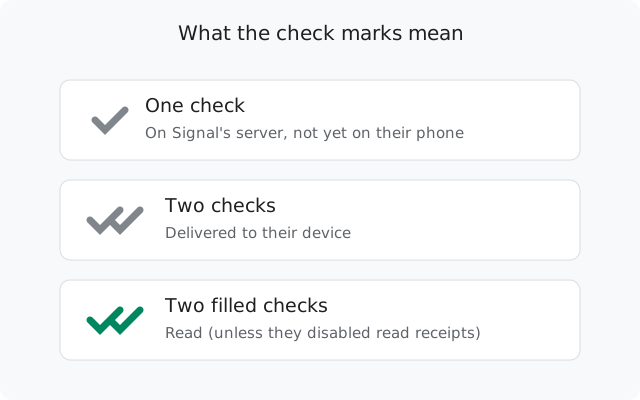
The tick on your message tells you exactly where it got stuck. Read the next section before doing anything else. It tells you whose side the problem is on.
What the check marks actually mean
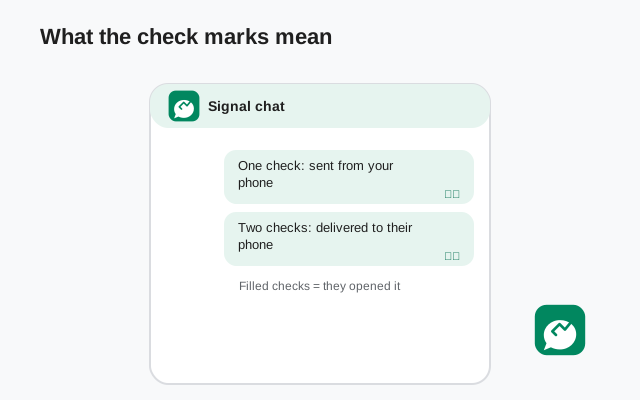
Signal's ticks are honest and precise. Learn them once and you'll never guess again:
- Clock icon (no check): the message hasn't left your phone yet. The problem is on your side: connection, app, or phone.
- One check: the message reached Signal's servers but has not been delivered to the recipient's device. See our stuck-on-one-check guide: the recipient's phone is usually offline, dead, or battery-killed.
- Two checks: delivered to the recipient's device. It is on their phone; they just haven't opened it.
- Two filled checks: read. The recipient opened the conversation. (It stays at two checks forever if they've turned off read receipts.)
The most misread state is one check. People assume their phone is broken; usually the other person's phone is simply off, in airplane mode, or has no signal. Your message is safe on Signal's server and will deliver when their phone reconnects.
Diagnostic table
| What you see | Meaning | Fix |
|---|---|---|
| Clock icon, message won't leave | Your phone can't reach Signal's servers | 60-second checks, then VPN/DNS |
| One check to everyone | Your messages reach the server but your connection drops, or Signal's servers are down | App-level fixes |
| One check to one contact only | Their phone is offline or uninstalled | Stuck-on-one-check guide |
| Two checks but they say they got nothing | Delivered to their device. Their notifications are broken | They need the notification guide |
| "Safety number changed" notice, then stuck | Session reset needed after their reinstall | One contact vs everyone |
| Nothing sends after a VPN/DNS app install | Network interference | VPN and private DNS |
One contact vs everyone
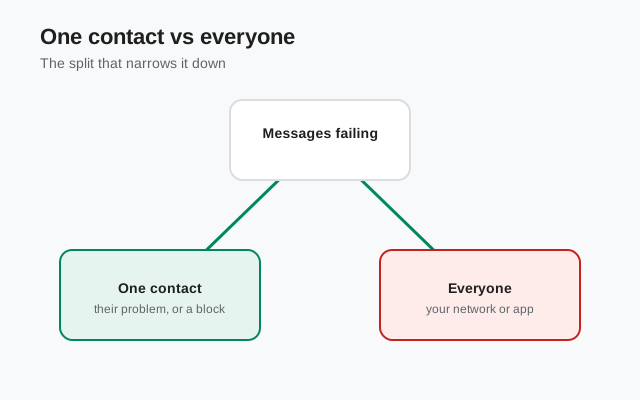
This is the single most useful test: send a message to a different contact. If it goes through, your phone and connection are fine. The problem is that one conversation.
Per-conversation causes
- They reinstalled or changed phones. Signal shows a "safety number changed" notice. Tap it, verify if you like, and accept. Sending resumes. If it doesn't, reset the secure session: open the conversation → contact name → Reset secure session.
- You blocked them (or they blocked you). A blocked contact's messages behave oddly. Check Settings → Privacy → Blocked. If you blocked them by accident, unblock and resend.
- Their number changed. Signal accounts are tied to phone numbers. If they changed numbers without transferring the account, you're messaging a dead registration. One check forever. Ask them for their new number.
- Old device sessions. If they used Signal on an old phone and never unregistered it, your messages may try to deliver to the dead device. They need to re-register on their current phone, which kills the old sessions.
If it's everyone
Then it's your connection, your app, or Signal's servers. Check support.signal.org or Signal's status channels for a server outage first. During a real outage, nothing you do on your phone will help, and it resolves on its own.
VPN, private DNS, and network interference
Signal needs a clean path to its servers. These are the usual suspects when messages suddenly stop sending after everything was fine:
- VPN apps: some VPNs block or break Signal's connection, especially free VPNs with aggressive filtering. Turn the VPN off and test. If sending works, the VPN is the cause. Try a different server or a split-tunnel exception for Signal.
- Private DNS: Android's Private DNS setting (Settings → Network → Private DNS) with a filtering DNS provider can block Signal's domains. Set it to Off or Automatic and test.
- DNS-filtering / firewall apps: apps like NetGuard, RethinkDNS, or ad-blockers with local VPNs can silently block Signal. Add Signal to their allowlist or pause them to test.
- Work or school networks: captive portals and firewalls can block Signal entirely. Test on mobile data. If it works there, the network is the problem, not your phone.
- Data saver: make sure Signal is exempt under Settings → Apps → Signal → Mobile data → Unrestricted data usage.
App-level fixes
Update Signal
Get the latest build from signal.org/android/apk (currently 8.29.3). Sending bugs get fixed in updates.
Clear the app cache (not data)
Settings → Apps → Signal → Storage → Clear cache. This is safe. It doesn't touch your messages. Do not clear data unless you've made a backup; that wipes your chats.
Check battery and background restrictions
Set battery to Unrestricted for Signal and allow background data. A phone that kills Signal's background connection will show exactly the "messages won't send until I open the app" pattern.
Restart the phone
Clears stuck network states and system services. Boring and effective.
Website build without Google services
The Play Store build receives messages through Google's push service (FCM). The website APK uses FCM when Play services exist, and falls back to its own persistent websocket connection when they don't (Huawei phones, de-Googled ROMs, some custom ROMs).
The websocket works, but it is a single long-lived connection that battery managers love to kill. If you run the website build without Google services and messages only arrive when you open the app, the battery exemptions are the fix: Unrestricted battery, background data allowed, and the brand-specific background settings (see the Huawei guide). This is a connection problem, not a Signal bug.
Last resort: re-register
If nothing above works, re-registering your number gives you a fresh account state and new encryption sessions. But know the cost first:
Confirm the backup
Check the backup date and time in Settings → Chats → Chat backups. Don't proceed on an old backup.
Re-register
Uninstall and reinstall Signal (or use the in-app re-register flow), enter your number, verify the SMS code, enter your PIN if registration lock is on, and restore from backup.
Tell key contacts
Your safety numbers changed. Close contacts will see a notice; that's normal and expected.
If even a fresh re-register doesn't fix sending, the cause is almost certainly the network (carrier-level blocking) or a phone firmware issue, not Signal. Test on a different network before doing anything drastic like a factory reset.
from Signal's official site, file hosted by Signal, not by us
Frequently asked questions
What does one check mark mean on Signal?
One check means your message reached Signal's servers but has not been delivered to the recipient's device yet. Their phone is likely offline, dead, or has no connection. The message will deliver when their phone comes back online.
Why do my Signal messages send only when I open the app?
Your phone's battery manager is killing Signal's background connection. Set Signal's battery to Unrestricted and allow background data, so it stays connected while closed.
Why won't Signal send messages to one specific contact?
Send to a different contact. If that works, the problem is that one conversation: they reinstalled (accept the safety-number change), blocked you, changed numbers, or their phone is offline.
Can a VPN stop Signal messages from sending?
Yes. Some VPNs and DNS-filtering apps block Signal's connection. Turn the VPN off and test; if sending works, add Signal to the VPN's exceptions or switch servers.
Does Signal work without Google Play services?
Yes. The website APK falls back to its own persistent websocket connection when Play services are absent. It works, but battery managers kill it more easily, so the battery exemptions matter more.
I reinstalled Signal and my chats are gone. Can I get them back?
Only from a chat backup. Signal does not store your message history on its servers. If you enabled backups before reinstalling, restore from backup; without one, the history is unrecoverable.
Related: diagnosing a message stuck on one check, fixing messages you never receive, battery fixes for delayed delivery, backing up before a reinstall, and the troubleshooting hub.