
Signal notifications not working on Samsung? Fix One UI battery settings
Published: October 7, 2026 · Updated: October 8, 2026
If Signal notifications arrive late or not at all on your Samsung phone, One UI's battery management is almost certainly the cause. Samsung's "Sleeping apps" and "Deep sleeping apps" lists force Signal to stop running in the background, which cuts its connection to the messaging servers. The fix takes about five minutes: take Signal out of every sleeping list, add it to "Never sleeping apps", and set its battery usage to Unrestricted. Everything below works for Galaxy phones on One UI 4 through One UI 7, whether you use the Play Store build or the official website APK.
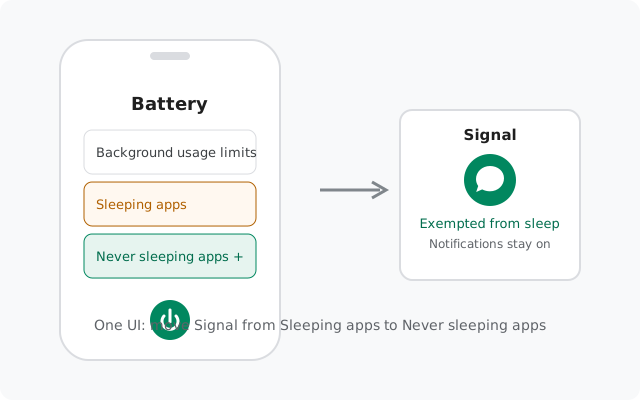
Why Samsung kills Signal's notifications
Signal receives messages over a persistent background connection. When you stop using the phone, that connection must keep running so incoming messages wake the app and trigger a notification. Samsung's battery system treats any app you haven't opened recently as a battery waster and suspends it. Once Signal is suspended, no messages come in until you open the app manually, and then all the missed messages flood in at once. That flood-after-opening pattern is the classic signature of a battery problem, not a Signal problem.
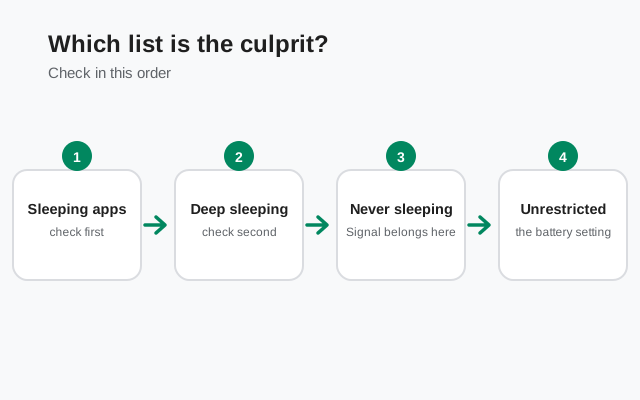
Three One UI mechanisms can each do this independently:
- Sleeping apps, apps you rarely open. They run occasionally in the background but with heavy restrictions, so notifications get delayed.
- Deep sleeping apps, apps Samsung has decided you almost never use. They never run in the background at all. Notifications only arrive when you open the app.
- Adaptive battery / background usage limits, Samsung learns which apps you "don't use" and quietly restricts them. Signal lands here if you mostly receive messages and rarely open the app.
All three must be checked. Fixing only one list while Signal sits in another leaves the problem half solved.
Quick diagnosis: which battery list is the culprit
Match your symptom to the likely cause before changing settings. This saves you from blindly toggling everything:
| Symptom | Likely cause | What to fix |
|---|---|---|
| Messages arrive hours late, or only when you open Signal | Signal is in Deep sleeping apps | Remove it from the deep sleeping list |
| Notifications arrive 10–30 minutes late but do arrive | Signal is in Sleeping apps | Move it to Never sleeping apps |
| Notifications worked for weeks, then stopped | Adaptive battery learned to restrict Signal | Add Signal to Never sleeping apps; check after One UI updates |
| Nothing arrives until you open the app, even though lists look clean | App-level Battery usage still set to Restricted | Set Signal's battery usage to Unrestricted |
| No sound or vibration, but the message badge appears | Notification settings, not battery | Check Android notification categories for Signal |
The One UI fix, step by step
Do these in order. Each step removes one layer of Samsung's restrictions:
-
Open Background usage limits
Go to Settings → Battery → Background usage limits. On some One UI versions the path is Settings → Battery and device care → Battery → Background usage limits. This screen holds all three lists.
-
Remove Signal from Sleeping apps and Deep sleeping apps
Open Sleeping apps and Deep sleeping apps. If Signal is listed in either, remove it. Samsung often pre-adds apps you haven't opened in a while, so check even if you never touched these lists.
-
Add Signal to Never sleeping apps
On the same screen, open Never sleeping apps, tap the + button, and add Signal. This is the strongest exemption One UI offers, apps here are excluded from automatic sleeping.
-
Set Signal's battery usage to Unrestricted
Go to Settings → Apps → Signal → Battery and select Unrestricted. This stops Android's own app-standby restrictions on top of Samsung's lists. If the option shows "Optimized", change it, "Optimized" still lets the system suspend the app.
-
Confirm notifications are fully allowed
Go to Settings → Notifications → App notifications → Signal and make sure everything is allowed: message notifications, call notifications, and lock-screen visibility. Also check the global Lock screen notifications → Show content setting, since hiding lock-screen content can make it look like notifications are missing.
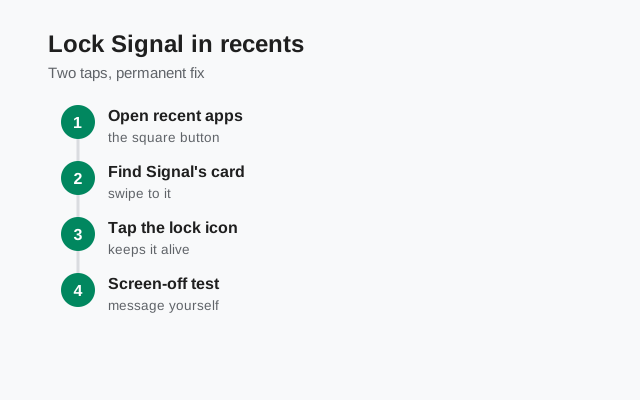
Lock Signal in recent apps
Samsung closes background apps when you swipe them away from the recents screen, unless the app is locked. With Signal running, open recents (tap the square button or swipe up and hold), then tap the Signal icon at the top of its card and choose Lock this app. A small lock badge appears on the card. Locked apps survive "Close all". This is separate from the battery lists, and it matters because swiping Signal away stops its background connection immediately.
The screen-off test that proves it works
Samsung's power rules change when the screen is off and the phone is unplugged, so test under those real conditions:
-
Reboot and open Signal once
Restart the phone, then open Signal once so its background connection starts fresh. This also verifies Signal is allowed to start after a reboot.
-
Lock the phone, unplugged, for 15 minutes
Leave the phone screen-off and not charging. Charging changes Samsung's power behavior and can hide a real problem.
-
Send a test message from another device
The notification should arrive within seconds. If it is late or missing, re-check the two sleeping lists, One UI sometimes re-adds apps after updates, and "Never sleeping apps" can silently lose entries after a major One UI upgrade.
-
Repeat the test overnight
Doze and deep sleep get stricter after hours of inactivity. One overnight test catches restrictions that a 15-minute test misses.
Other Samsung-specific causes
- Data saver: Settings → Connections → Data usage → Data saver. If it's on, set it to allow unrestricted data for Signal, or notifications can stall on mobile data.
- Power saving mode: Settings → Battery → Power saving. When enabled, it limits background network activity by design, notifications will be delayed or absent while it's on. That's expected behavior, not a bug.
- Do Not Disturb schedules: Settings → Notifications → Do not disturb. Check for forgotten schedules (sleep hours, work hours) that silence Signal without any visible indicator.
- Dual Messenger: if you cloned Signal with Settings → Advanced features → Dual Messenger, notifications can split between the two copies. Run only one copy.
- VPN or private DNS: an always-on VPN or a strict private DNS provider can interfere with Signal's background connection. Test with both temporarily off.
- Work profile: if your Galaxy is managed by a work profile or MDM, the admin's policies can restrict background apps. That's a device-management issue, not a Signal issue, check with your IT admin.
Things that do not fix this
Skip the usual dead ends:
- Reinstalling Signal: the new install lands in the same sleeping lists. Reinstall only as a last resort, and back up your chats first, reinstalling wipes local data.
- Clearing cache or data: cache has nothing to do with background execution. Clearing data logs you out and forces a re-registration.
- "RAM booster" apps: they kill background apps even more aggressively than One UI does. Uninstall them.
- Turning off 5G or switching networks: notification delivery doesn't depend on the radio type. A phone on 4G gets notifications just as fast once the app is allowed to run.
from Signal's official site, file hosted by Signal, not by us
Frequently asked questions
Why do Signal notifications stop working after a Samsung update?
One UI updates frequently reset battery exemptions, including the Never sleeping apps list. After any major One UI upgrade, re-check Settings → Battery → Background usage limits and re-add Signal if it was dropped.
Does keeping Signal out of sleeping apps drain the battery?
Barely. Signal's background connection is lightweight, occasional tiny keep-alive packets. On most Galaxy phones it doesn't register in the top battery consumers. The screen and mobile radio dominate battery use, not messaging apps.
Do I need to do this on every Samsung phone?
Only if notifications misbehave. Many Galaxy phones never auto-add Signal to the sleeping lists. But if messages arrive late or only when you open the app, these settings are the first place to look, they fix the problem in the large majority of cases.
Will these steps also fix delayed WhatsApp or Telegram notifications?
Often, yes, the same sleeping lists affect every messaging app. But this guide is about Signal: exempting Signal in the steps above doesn't automatically exempt other apps. Repeat the process per app.
What if notifications still fail after all these settings?
Work through our master notification diagnosis next. It covers VPN/DNS conflicts, Do Not Disturb, data saver, and phone-level problems that go beyond Samsung's battery lists.
Does the website APK behave differently from the Play Store version on Samsung?
Both versions use the same background connection model on Samsung (Google's push network is available on Galaxy phones, and both builds can use it). The battery fix above applies identically to both. Get the website build only from signal.org/android/apk, current version 8.29.3.
Related: master notification diagnosis, late notifications on any brand, Huawei's battery rules, installing Signal on Samsung, and the troubleshooting hub.