
How to reduce Signal's storage without losing important chats
Published: October 7, 2026 · Updated: October 8, 2026
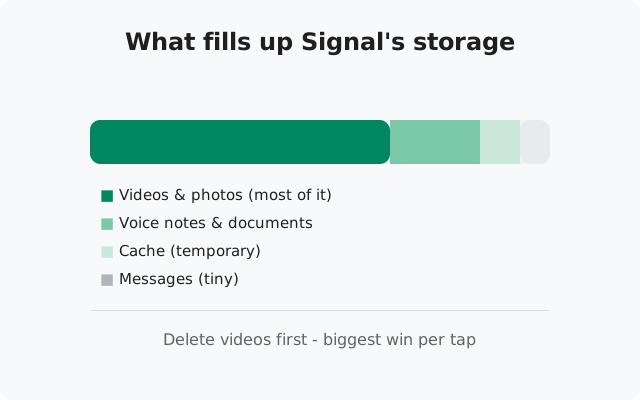
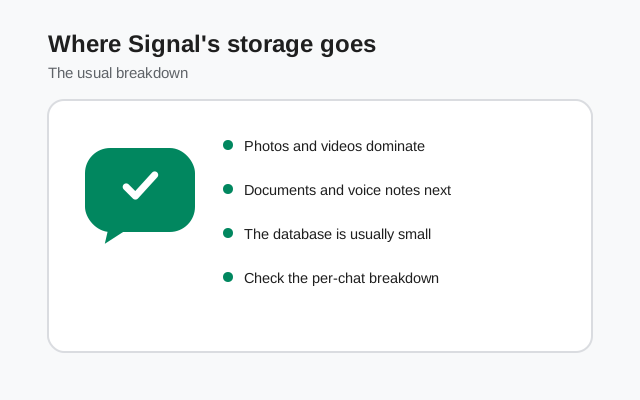
Signal's storage is almost entirely chat media (photos, videos, voice notes, and documents), not your messages. Text takes up almost nothing; a single long video can outweigh years of texting. The safe way to shrink Signal's footprint is reviewing media chat by chat with Signal's own storage tools, deleting what's disposable, and slowing the incoming flow so it doesn't fill up again. This guide shows the whole process, with a backup-first rule before any bulk deleting.
Step 1: see exactly what's using the space
Don't delete blindly. First find out where the gigabytes actually are:
-
Check Signal's own storage screen
Open Signal, tap your profile icon, and go to Settings → Data and storage → Manage storage. This shows Signal's total footprint and breaks it down (which chats hold the most media), so you can target the big ones first.
-
Cross-check with Android
Go to Settings → Apps → Signal → Storage for the system-level number. It should roughly match what Signal reports. (The small "Cache" portion here is temporary files. Clearing it is safe but barely dents real storage problems. See our cache guide for the cache-vs-data distinction.)
-
Identify the pattern
Usually it's one of these: a family group chat full of videos, years of accumulated memes, or a few huge video files someone sent once. Knowing the pattern tells you which fix below matters most.
Step 2: review and remove old media
The Manage storage screen lets you review media chat by chat and delete what you don't need. Work from the largest chats downward:
- Delete videos first. They give the most space back per tap. A single minute of video can free more than a thousand photos.
- Keep what matters, delete the rest. Family photos worth keeping? Leave them. The 40th forwarded meme this month? Gone.
- Deleting media doesn't delete the conversation. The messages and text stay; only the attachments you select are removed.
- Save important media elsewhere first. If a photo matters, save it to your gallery or cloud storage before deleting it from Signal. Once it's gone from the chat, it's gone.
For individual chats, you can also open the chat, tap the contact or group name, and browse Media to review and delete attachments directly.
Step 3: let disappearing messages do the work
The best cleanup is the kind you never have to do. Disappearing messages auto-delete messages (and their media) after a timer you set per chat:
-
Set a timer on high-traffic chats
Open the chat, tap the contact or group name, and set a disappearing-message timer. Busy group chats are the best candidates. That's where most storage bloat comes from.
-
Know the backup interaction
Messages with short disappearing timers (24 hours or less) are excluded from Signal's chat backups. That's by design: if it's meant to disappear, the backup doesn't keep a copy either. Use longer timers (or no timer) on chats whose history you want preserved in backups.
-
Don't timer everything blindly
Keep timers off (or long) on chats with photos, documents, or information you'll need later: receipts, addresses, work files. Timers are for ephemeral chatter, not your archive.
Step 4: slow the incoming flow
Cleaning once is pointless if the storage fills up again next month. These settings control what arrives:
- Media auto-download → Wi-Fi only. In Settings → Data and storage → Media auto-download, stop auto-downloading on mobile data. Media becomes tap-to-download, so only what you actually want lands on your phone. This saves mobile data too. See our data usage guide.
- Sent photo quality → Standard. Smaller uploads mean smaller stored copies on both ends.
- Leave busy groups or mute the media. If a group exists mainly to forward videos, muting it or leaving does more for your storage than any setting.
Back up before any bulk delete
Deleting old media is safe, but "safe" assumes you won't change your mind. Before a big cleanup session:
-
Turn on chat backups
Settings → Chats → Chat backups → Turn on, and let it finish fully. This preserves your messages even if you later regret a deletion (note: media you delete before backing up won't be in the backup. Back up first).
-
Save your recovery key
Current Signal backups use a 64-character recovery key. The old 30-digit passphrase format is retired and won't work with new backups. Write the key down somewhere safe. Without it, the backup file can't be read.
-
Save important media outside Signal
Photos you care about should live in your gallery or cloud storage, not only inside a chat. Do that first, then delete freely.
Our Android backup guide covers the full process step by step.
What NOT to delete
In the enthusiasm of a cleanup, these are the things people regret deleting:
- Your backup file via a file manager. Signal's backup lives in the phone's internal storage. If you go hunting for big files with a file-manager app and delete an unfamiliar large file, you may have just deleted your only backup. Never delete files outside the Signal app unless you're certain what they are.
- Media from chats with disappearing timers already on. It's already going away by itself. Deleting it manually just risks removing something the other person expected to stay until the timer ran out.
- Documents you might need as proof. Receipts, booking confirmations, work files, ID photos. If there's any chance you'll need it later, save it outside Signal first. "I'll remember it was there" is how people lose boarding passes.
- Everything in a moment of frustration. Bulk-deleting an entire chat's media can't be undone. Work chat by chat, biggest first, and stop when you've freed enough. You don't need to get to zero.
from Signal's official site — file hosted by Signal, not by us
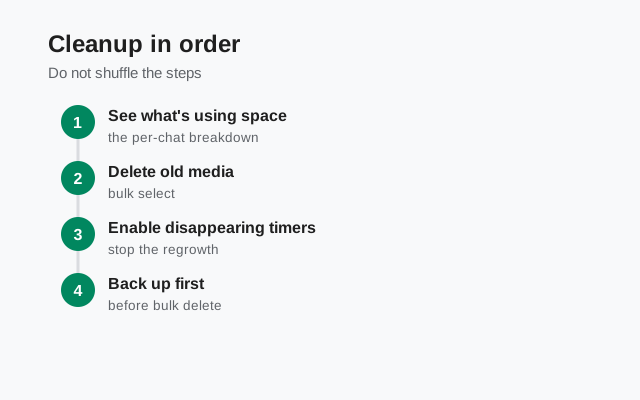
Storage cleanup checklist, in order
| Order | Action | Why this order |
|---|---|---|
| 1 | Back up chats and save the recovery key | Safety net before touching anything |
| 2 | Save important photos/videos outside Signal | Once deleted from a chat, media is gone |
| 3 | Manage storage → delete videos in the biggest chats | Biggest space return per minute of effort |
| 4 | Delete old memes, forwards, and duplicates | High volume, zero value |
| 5 | Set disappearing-message timers on busy groups | Prevents the bloat from returning |
| 6 | Media auto-download → Wi-Fi only | Slows future accumulation |
| 7 | Clear the app cache (optional, minor) | Safe, but only recovers a small amount. See the cache guide |
When the whole phone is full
If your phone (not just Signal) is out of space, Signal is usually a symptom rather than the disease. But Signal does feel it first: it can't download media, backups fail, and the app may crash. Our phone-storage-full guide covers the phone-level fixes. The short version: clear other apps' caches, move photos to cloud storage, and uninstall apps you don't use. Then come back here for the Signal-specific cleanup.
Also note: an extremely full phone can corrupt app data. If Signal starts crashing after the phone filled up completely, free space first, then see our crashing guide: and keep that backup current.
Frequently asked questions
Why is Signal taking up so much storage?
Chat media. Photos, videos, voice notes, and documents accumulate silently, especially in group chats with auto-download on. Text messages take up almost nothing by comparison. Check Settings → Data and storage → Manage storage to see which chats are the biggest.
Will deleting media delete my messages too?
No. When you remove attachments through Manage storage or a chat's media view, the text messages stay in place. Only the files you select are deleted.
Do disappearing messages really save storage?
Yes, over time. With a timer set, messages and their media delete themselves instead of piling up forever. Just remember that short timers (24 hours or less) also exclude those messages from your chat backups.
Is it safe to clear Signal's data to free space?
No. "Clear data" wipes your chats and signs you out; it's not a storage-cleanup tool. Use Manage storage to remove media instead. Only clear data as a last-resort repair, with a backup done first.
My phone says storage full but Signal doesn't look that big. What's wrong?
Then Signal isn't the main problem. Something else is filling the phone. Signal just suffers first because it needs free space to download and back up. Free up phone-level space first (photos, other apps), then re-check.
Related guides: clearing the cache safely, reducing mobile data, media won't send or download, or the full troubleshooting hub.