
How to clear Signal's cache without losing any chats
Published: October 7, 2026 · Updated: October 8, 2026
Yes: clearing Signal's cache is safe: the cache holds only temporary files, so your chats stay put. The app rebuilds the thumbnails and preview images it needs the next time it runs. The dangerous button sits right next to the Clear cache button: Clear data (or "Clear storage") wipes your messages and logs you out of Signal on that phone.
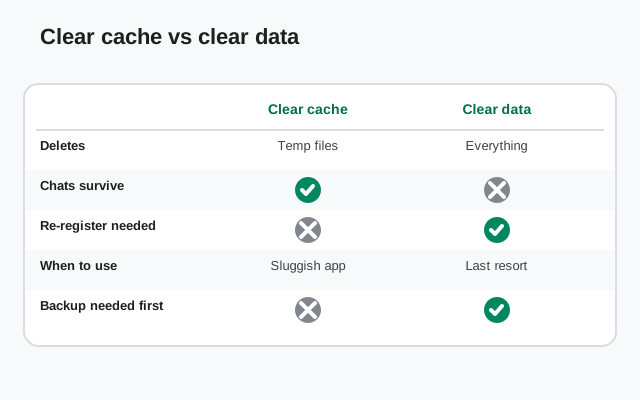
Clear cache vs clear data: the critical difference
Android gives you two similarly named buttons in every app's storage settings, and they do wildly different things. Mix them up once and you'll wish you hadn't.
- Clear cache: deletes temporary files only. Your chats, media, settings, and account stay exactly as they were. Safe to do any time, even daily.
- Clear data / Clear storage: deletes everything the app stored on the phone (chats, downloaded media, settings) and signs you out of Signal on that device. You would need to re-register with your phone number and restore from a backup. Only use it as a last resort, and back up your chats before you even think about it.
A useful mental model: cache is the app's short-term scratch paper. Your chats are the notebook. Throwing away scratch paper never touches the notebook.
When clearing the cache actually helps
Clearing the cache fixes a specific family of problems: the ones caused by corrupted or stuck temporary files:
- Stuck or broken media thumbnails: photos show as gray boxes or previews never load, even though the file arrived fine. This is the number-one case cache-clearing fixes.
- The app feels sluggish or glitchy: screens redraw slowly, the chat list flickers, or the keyboard behaves oddly inside Signal.
- Downloads that freeze partway: a voice note or document that gets stuck at the same percentage every time.
- Weird behavior right after an update. The app updated but is acting like a mix of the old and new version. Old cached files are the usual suspect.
If your problem is on that list, clear the cache, then force-close Signal and reopen it. Give it a minute to rebuild its temporary files before judging the result.
When it will not help
Cache-clearing is not a general repair tool. It will not fix:
- Messages not sending or receiving: that's almost always a connection, battery-optimization, or notification problem. See our guides on messages not sending and missing notifications.
- Calls not connecting or poor call quality. See call troubleshooting and call quality fixes.
- Battery drain: see our battery diagnosis guide. Clearing the cache has no effect on battery use.
- Storage almost full: the cache is small compared to your chat media. Real cleanup means removing old photos and videos: our storage guide walks through it.
- Registration or verification problems: see registration fixes.
If you've cleared the cache twice and nothing changed, the problem is somewhere else. Don't keep clearing it hoping for a different result. Move on to the guide that matches your actual symptom.
Samsung: clear Signal's cache
-
Open Settings, then Apps
Tap Settings → Apps, then find Signal in the list (use the search bar at the top if the list is long).
-
Open Storage
Tap Storage. You'll see two numbers: how much space Signal's data uses and how much its cache uses.
-
Tap "Clear cache", not "Clear data"
Tap the Clear cache button at the bottom. The cache number should drop to near zero. Do not tap Clear data: that's the button that wipes your chats.
-
Restart Signal
Go back and tap Force stop (optional but recommended), then open Signal again from your home screen.
Pixel / stock Android: clear Signal's cache
-
Open Signal's app info
Long-press the Signal icon on your home screen or app drawer and tap App info. (Or: Settings → Apps → See all apps → Signal.)
-
Open Storage & cache
Tap Storage & cache. You'll see "Clear storage" and "Clear cache" as two separate buttons.
-
Tap "Clear cache"
Tap Clear cache only. "Clear storage" is Pixel's name for the dangerous one: it deletes your chats and signs you out.
-
Reopen Signal
Launch Signal again and check whether the glitch is gone.
Xiaomi / MIUI / HyperOS: clear Signal's cache
Xiaomi's menus hide the safe button one tap deeper, and this is where people most often hit the wrong one, so read carefully.
-
Open app settings for Signal
Go to Settings → Apps → Manage apps → Signal.
-
Tap "Clear data" at the bottom, then choose carefully
MIUI shows a single Clear data button. Tapping it opens a popup with two options: Clear cache and Clear all data. Choose Clear cache. Do not choose "Clear all data": that wipes your chats.
-
Confirm and restart
Confirm the cache clear, then reopen Signal.
Clear it from inside Signal instead
If you'd rather not dig through Android settings, Signal has its own storage tools. Open Signal, tap your profile icon, and go to Settings → Data and storage → Manage storage. This screen shows how much space Signal uses and lets you review and remove old media chat by chat. It is much more powerful than a cache clear, and still safe: it only touches media you choose to delete, never your message history itself.
Older Signal builds also had a one-tap "clear message cache" option on this screen. If your version shows it, it's the same safe operation as the Android-level cache clear.
Back up first if you ever need the other button
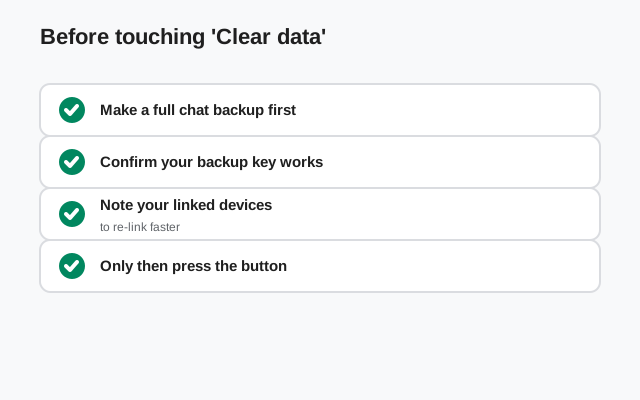
Sometimes "Clear data" (or a full reinstall) is genuinely the fix: for example, when the app's database is corrupted and nothing else helps. If you ever reach that point, do this first:
-
Turn on chat backups
In Signal: Settings → Chats → Chat backups → Turn on. Let the backup finish completely.
-
Save your backup passphrase
Current Signal backups use a 64-character recovery key. (The old 30-digit passphrase is retired. If you wrote one down years ago, it won't work on a fresh backup.) Write the key down somewhere safe; without it, the backup file is unreadable.
-
Only then clear data or reinstall
After clearing data, you'll re-register with your phone number and restore from the backup. Full steps are in our backup restore guide and re-registration guide.
from Signal's official site — file hosted by Signal, not by us
Comparison: what each cleanup action really does
| Action | What it deletes | Chats safe? | When to use it |
|---|---|---|---|
| Clear cache (Android settings) | Temporary files, thumbnails, previews | Yes, safe (temporary files only) | Glitchy UI, stuck media previews, sluggish app |
| Manage storage (inside Signal) | Old media you select, chat by chat | Yes, messages stay | Freeing space, removing old photos/videos |
| Clear data / Clear storage | Everything: chats, media, settings, login | No, wipes the phone copy | Last resort for corrupted installs; back up first |
| Uninstall + reinstall | Same as clear data, plus the app itself | No, same as above | App won't open after an update; back up first |
| Force stop | Nothing: just stops the running app | Yes | Frozen app, quick reset before reopening |
Frequently asked questions
Will clearing Signal's cache delete my chats?
No. Clearing the cache only removes temporary files like thumbnails and preview data. Your chats, media, and settings are untouched. The button that deletes chats is called "Clear data" or "Clear storage": a different button, right next to it.
What's the difference between clear cache and clear data on Signal?
Clear cache removes temporary files, which is why it is safe for your chats. Clear data wipes everything Signal stored on the phone (all chats, downloaded media, and settings) and signs you out, forcing you to re-register your number and restore from a backup.
I cleared the cache and my problem is still there. What now?
Then the cause isn't temporary files. Match your symptom to the right guide: messages not sending, missing notifications, bad call quality, or a full phone. Clearing the cache twice with no change means it's time to move on to real diagnosis.
Does clearing the cache log me out of Signal?
No. You stay logged in and registered. Only "Clear data" / "Clear storage" signs you out of the app on that phone.
How often should I clear Signal's cache?
There's no schedule to keep. Clear it when something glitchy appears (stuck thumbnails, a sluggish interface) and otherwise leave it alone. It doesn't save meaningful storage or battery, so clearing it "just because" gains you nothing.
Related fixes: reduce Signal's storage footprint, media that won't send or download, Signal keeps crashing, or back to the troubleshooting hub.