
Back Up Before Reinstalling Signal: The Full Checklist
Published: October 7, 2026 Updated: October 8, 2026
People reinstall Signal for sensible reasons: a misbehaving install, a phone cleanup, moving between the Play Store build and the website APK, or just starting fresh. The reinstall itself takes two minutes. The part that ruins people's week is what happens before it. Or rather, what they skip. This guide is the full pre-reinstall checklist, in order, with an honest account of what each skipped step costs you.
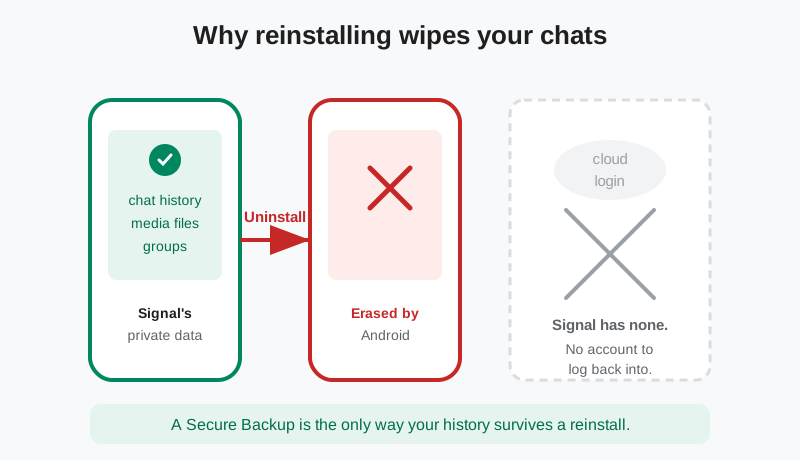
Why reinstalling wipes your data
Signal keeps your messages in an encrypted database on your phone. Not on a server tied to a login. That is a privacy feature: there is no cloud copy of your chats for anyone to grab. But it has a sharp edge. When you uninstall the app, Android deletes the app's private data along with it, including that encrypted database. Reinstalling gives you a brand-new, empty Signal. Your account (your phone number) still exists on Signal's servers, but your history lived on the phone, and the phone just threw it away.
This surprises people coming from apps with cloud logins, where reinstalling means signing in and watching everything reappear. Signal does not work that way, by design. The only sanctioned way to carry your history across a reinstall is a Secure Backup: an encrypted copy of your chats that Signal can restore, unlocked by a 64-character recovery key that only you hold. No backup, no key, no history. That is the entire mechanism, and everything in this guide follows from it.
The pre-reinstall checklist, step by step
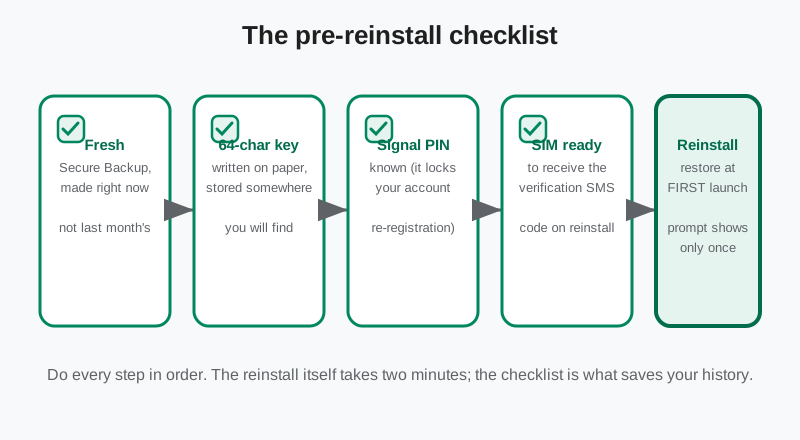
Do these in order, before you touch the uninstall button:
- Make a fresh Secure Backup, right now. Not last month's. A new one, so it contains everything up to this minute. In Signal: Settings, then Chats, then Chat backups, and run it. Wait for it to finish completely; a half-finished backup is not a backup. Our Secure Backups guide covers where the backup lives and how the tiers work.
- Write down the 64-character recovery key on paper. Screenshots on the same phone you are about to wipe do not count. Paper, in a place you will actually find again. This key is the only thing that can open your backup. Signal cannot recover it for you. Nobody can.
- Confirm you know your Signal PIN. The PIN is your registration lock: it protects your number from being re-registered by someone else. After a reinstall you will re-register, and the PIN is part of that. If you have forgotten it, sort that out before you uninstall. See our lost passphrase and PIN guide if you are unsure.
- Keep your SIM ready to receive the verification SMS. Reinstalling means re-registering your number, and registration needs the SMS code. If your number is on a SIM in another phone, in a drawer, or on an eSIM you are about to wipe, fix that first. No SMS code, no finished setup.
- Reinstall, then restore at first launch. Install the app again, from the Play Store or from Signal's APK page, and when the restore prompt appears on first launch, tap Restore and enter your key. The prompt shows only once.
That is the whole procedure. Five steps, maybe ten minutes, and your history survives intact. Every disaster story in the next section is one of these steps skipped.
Secure Backups and the 64-character key
Secure Backups is Signal's current backup system, and the 64-character recovery key is its heart. When you enable backups, Signal generates this key and shows it to you once. It encrypts your backup so that only the key holder, you, can open it. Write it down, keep it somewhere safe, and never share it. Anyone with the key can read your backup.
A quick note on the other option, because it still confuses people: Signal has two backup options but one key. Both Secure Backups and current on-device backups, a folder on your phone (message archive plus media folder) that you can copy wherever you like, are unlocked by the same 64-character recovery key. The 30-digit passphrase belongs to the legacy era: older Signal versions saved on-device backups as a single .backup file, and only those old files still need it. The two keys are not interchangeable. Our backup passphrase guide untangles the two eras.
What the tiers cover: the free tier backs up your texts plus the last 45 days of media, up to 100 MiB. The paid tier ($1.99/month) backs up your full media history, up to 100 GB. Decide before you reinstall: if your media matters to you and you are on the free tier, older photos and videos beyond 45 days will not come back. That is not a bug; it is the tier limit. Upgrade first if the media is worth more to you than the subscription.
Restoring at first launch
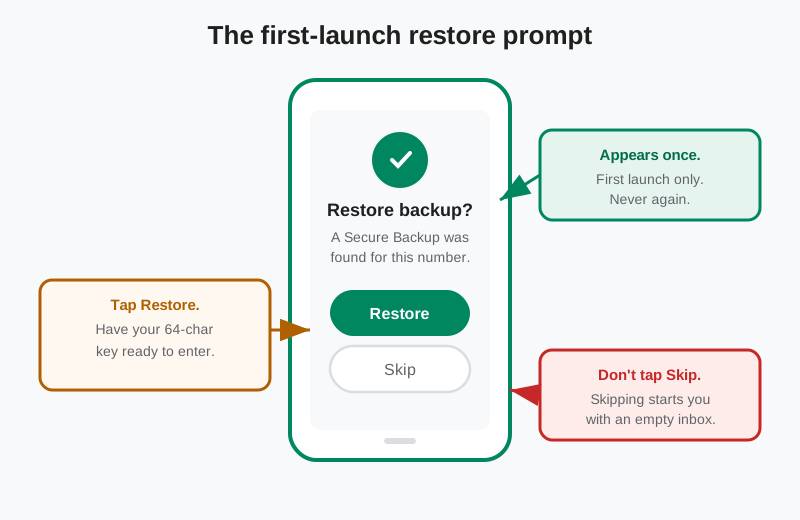
After reinstalling and verifying your number, Signal checks for a Secure Backup tied to your account and offers to restore it. This is the moment the whole checklist was building toward. Three things to know:
- The prompt appears only at first launch. If you tap Skip, or rush past it, it does not come back. You start with an empty inbox, and the backup sits there unused. There is no "restore later" button hiding in Settings for this path.
- Have the key ready before you tap Restore. You will be asked to enter the 64-character recovery key. This is why step 2 of the checklist said paper, not a screenshot on the wiped phone.
- Let it finish. Restoring can take a while on large histories. Keep the app open, stay on Wi-Fi, and do not force-close it. Interrupting a restore is a good way to end up with a partial history and a headache. If a restore fails partway, our backup failure guide has the recovery steps.
When it completes, your chats, groups, and media (within your tier) are back exactly as you left them. Do not celebrate yet. Verify the restore against four checks first:
- Chats are present. Open a few conversations, old and new, and confirm the text history reads through end to end.
- Groups are intact. Open a group you are active in and confirm the membership and recent messages match.
- Media loaded. Open a photo-heavy chat and confirm the images within your tier's media window actually display.
- No surprise safety-number changes. With a proper restore your contacts should not see an identity-change warning for you. If friends start asking whether you got a new phone, something restored wrong.
What breaks if you skip (honestly)
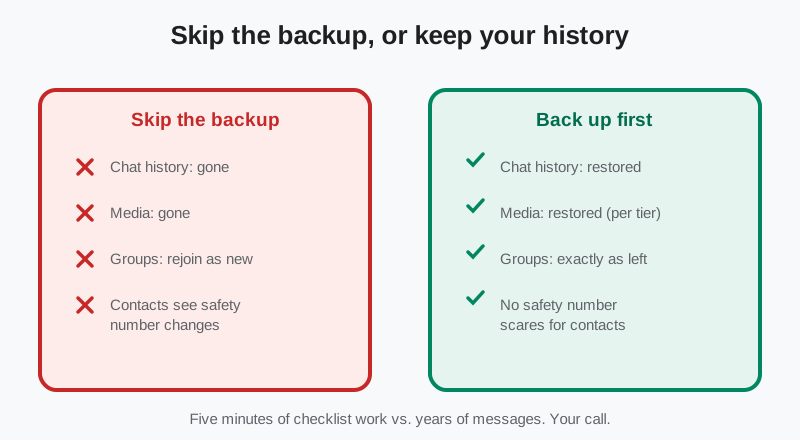
No scare tactics. Just the mechanics, step by skipped step:
| Skipped step | What actually breaks |
|---|---|
| No fresh backup | Everything since your last backup is gone. If you never backed up, everything is gone. |
| Key not written down | The backup exists but cannot be opened. An unopenable backup is the same as no backup. |
| PIN forgotten | Registration lock can delay re-registering your number. You may wait out the lock period before setup completes. |
| SIM not ready | No SMS verification code, so registration cannot finish. You are stuck mid-setup until you can receive texts on that number. |
| Restore skipped at first launch | The prompt never returns. You start empty, even though a perfectly good backup exists. |
Two more consequences people do not expect. First, your contacts may see safety number changes for you after a reinstall without restore, which looks alarming to non-technical friends. "Did someone hijack your account?" With a proper restore, that noise mostly goes away. Second, disappearing-message timers and per-chat settings are part of your history; without a restore, they reset to defaults and you reconfigure everything by hand.
Edge cases worth knowing
Reinstalling to switch builds. Moving between the Play Store build and the website APK is the most common "reinstall" of all. The two builds are signed differently, so you cannot install one over the other; it is a full uninstall and reinstall. The checklist above applies in full. Our switching builds guide covers the build-specific wrinkles.
Moving to a new phone is not a reinstall. If you are changing devices rather than wiping the same one, the procedure differs slightly. You keep the old phone around until the transfer completes. See moving Signal to a new phone and Android-to-Android transfer for those paths.
Lost key, no backup, already uninstalled. Then the history is gone, and no guide can bring it back. Anyone promising otherwise is selling something. What you can still do: re-register, rejoin groups, and set up Secure Backups properly this time so it never happens again. Start with our backup hub and make the fresh backup from step 1 your new habit.
Frequently asked questions
Will reinstalling Signal delete my messages?
Yes, unless you back up first. Uninstalling deletes the app's private data, including your encrypted message database, and Signal has no cloud login to restore from. Make a fresh Secure Backup and write down your 64-character recovery key before you uninstall.
Where is the 64-character recovery key?
Signal shows it when you enable Chat backups (Settings, then Chats, then Chat backups). Write it on paper and store it somewhere safe. Signal cannot recover it for you. Nobody can. One key unlocks both current backup types: the hosted Secure Backups archive and the on-device backup folder. The old 30-digit passphrase opens only legacy .backup files from older Signal versions, never a Secure Backup.
Does the free backup tier save my photos?
The free tier covers your texts plus the last 45 days of media, up to 100 MiB. The paid tier ($1.99/month) covers your full media history up to 100 GB. Media older than 45 days will not restore on the free tier.
I tapped Skip on the restore prompt. Can I restore now?
The first-launch restore prompt does not come back. If you skipped it, you would need to uninstall and reinstall again to see it, and only then if a valid Secure Backup still exists for your number. Do not skip it.
Do I need my old phone to reinstall Signal?
No. A reinstall happens on the same phone, so you do not need another device. You do need your SIM (to receive the verification SMS), your Signal PIN, and your 64-character recovery key.
Will my contacts know I reinstalled?
With a proper backup and restore, mostly no. Your chats and groups come back as they were. Without a restore, contacts may see safety number changes for you, which can look alarming. Restoring avoids that noise.
Related guides
- Backup hub: every backup and restore guide on this site
- Secure Backups explained: keys, tiers, and how it all works
- Restore a Signal backup: the full restore walkthrough
- Lost your backup passphrase?: what can and cannot be recovered
- Back up before switching builds: Play Store vs website APK moves
from Signal's official site — file hosted by Signal, not by us