
Install Signal on Android 11 the right way
Published: October 7, 2026 Updated: October 8, 2026
Signal Foundationfrom Signal's official site — file hosted by Signal, not by us. signal.org/android/apk
If you are running Android 11 and the Play Store is not an option (maybe your account region blocks it, maybe the phone has no Google services, or you simply prefer Signal's own build), the direct APK from Signal's site works just as well on Android 11 as it does on newer phones. The current website build is version 8.29.3, package org.thoughtcrime.securesms, and Android 11 is comfortably inside the range Signal supports.
This guide covers the parts that are specific to Android 11: the exact settings path for allowing installs, the one-time permission model that arrived with 11, the auto-reset feature that can silently break your notifications if you ignore it, and how scoped storage affects your chat backups. Nothing here requires root or a computer.
One thing to know before you start: the website build is signed with a different key than the Play Store build. If Signal is already installed from the Play Store, the APK will refuse to install over it. That is an Android security rule, not a bug. If that is your situation, read our guide to the APK vs Play Store install conflict before you touch anything, because switching builds means backing up and migrating properly so you do not lose your chats.
Install steps on Android 11
Download the APK from Signal's own page
Open your browser and go to signal.org/android/apk. Tap the download button there and confirm when the browser asks to keep the file. The file name ends in
.apkand is a few dozen megabytes. Small enough to grab on mobile data if you need to; see our mobile-data download tips if your connection is flaky.Allow your browser to install apps
Open the downloaded file. Android 11 will stop you at first with a prompt: the browser needs the "Install unknown apps" permission. Tap Settings in the prompt (or go to Settings → Apps → your browser → Install unknown apps) and switch on Allow from this source. Grant it only for your browser, not for every app.
Install and verify
Go back and tap Install. After it finishes, open Signal and register your phone number. Before you trust the install, compare the SHA-256 fingerprint printed on signal.org/android/apk with the certificate of the file you downloaded. Our step-by-step verification guide shows how on any platform.
Finish first-run setup
Enter your number, wait for the SMS code, and restore from a backup if you have one. Our first-run setup walkthrough covers the screens you will see in order.
One-time permissions: choose wisely
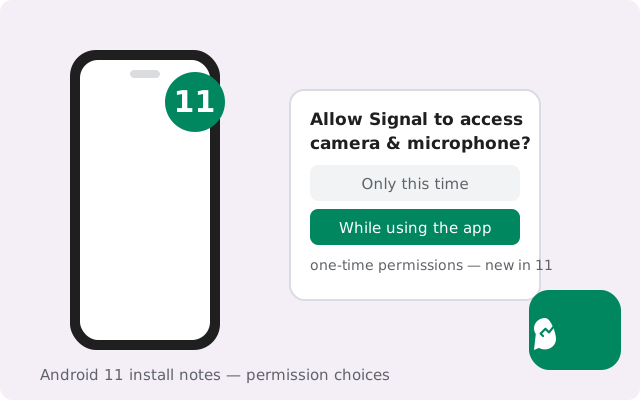
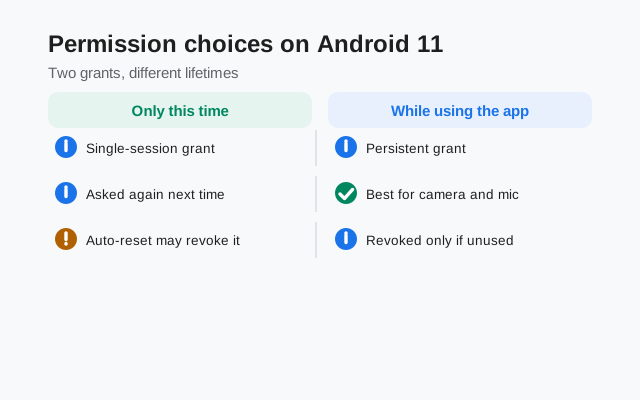
Android 11 introduced one-time permissions for camera, microphone, and location. This is where a lot of people accidentally break Signal on the first day. When Signal asks for the microphone for a call, Android offers three choices: While using the app, Only this time, and Deny.
If you pick "Only this time" for the microphone, calls will work fine right now. But the next time someone calls you, Signal has to ask again. If you are not looking at the phone when the call comes in, the permission prompt can eat the call before you answer it. For a messenger you want always ready, grant While using the app for the microphone and the camera.
Location deserves a special note: Signal asks for your location for one thing only: sharing your current or live location inside a chat. When you tap that feature, Android asks at the moment you use it, which is exactly what one-time access is for. If you see a location prompt at any other time, read it carefully. It is probably coming from a different app.
You can revisit these choices any time under Settings → Apps → Signal → Permissions. Nothing here is permanent, so experiment freely. But remember that "Only this time" is a trap for apps you need to answer calls on.
Auto-reset permissions on unused phones
Android 11 also introduced permission auto-reset: if you do not open an app for a few months, the system quietly revokes its runtime permissions. The idea is sound. Apps you abandoned should not keep camera access forever. The problem is that it can hit Signal on a backup phone or a dual-SIM second device that sits in a drawer for a quarter.
When auto-reset fires on Signal, the symptoms are confusing: the app looks installed and registered, but calls do not ring, notifications vanish, and nothing in Signal's settings explains why. The fix is two minutes: reopen Signal, walk through the permission prompts again, and you are back.
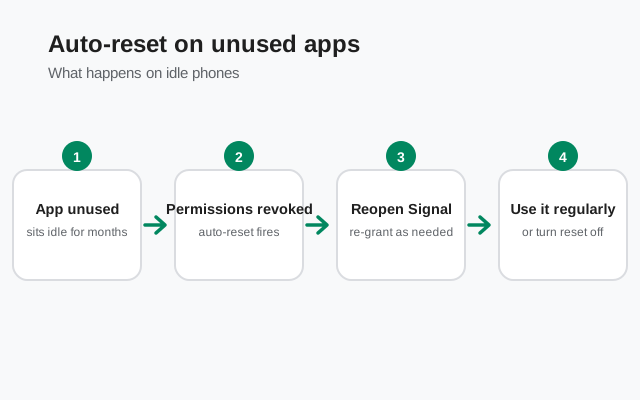
If you use Signal as your daily driver, auto-reset will never trigger. The counter only runs on apps you do not open. It is the second phone, the travel phone, and the "emergency contact" phone that need attention. Two options:
- Open Signal on that device every few weeks. Even a glance resets the inactivity timer.
- Or turn auto-reset off for Signal specifically: Settings → Apps → Signal → Permissions → Remove permissions if app is unused → switch it off. This is the right call for any phone where Signal is your lifeline, even if you rarely open it.
While you are in that screen, double-check that the microphone, camera, and notification permissions are all still granted. On an older phone that has passed through updates and backups, permissions sometimes do not survive the journey.
Scoped storage and your backup file
Android 11 enforces scoped storage, which changes where apps can read and write files. For Signal, the practical effect is on your chat backups. Signal keeps its local backup file in its own folder (the Signal/Backups folder in internal storage on most phones), and under scoped storage, only Signal itself can reach into that folder. Other file managers and apps are kept out.
That is mostly good news: no random app can wander through your encrypted backup. But it changes the migration workflow slightly. When you move Signal to a new phone, you copy the backup file out with a file manager (Signal's own folder is readable by the file manager for copying purposes on most skins, or via USB from a computer), then place it in the same folder on the new phone before restoring.
Two rules that will save you grief:
- Never rename the backup file. Signal recognizes it by its exact name and format. Renaming it makes it invisible to the restore screen.
- Restore before you register. The restore option appears during first-run setup. If you register first and skip it, you cannot go back. You would have to reinstall Signal to see the option again.
Our phone-to-phone transfer guide walks through the whole move with screenshots, including what to do when the backup file seems to be missing.
Notifications on Android 11
Android 11 reorganized notifications into conversations. Message notifications from people now sit in their own section at the top of the shade, above silent and alerting notifications. For Signal, the one setting that matters is simple: when Android 13-era notification permission prompts do not exist on 11, every app gets notification access by default, and you manage it per-app.
Go to Settings → Apps → Signal → Notifications and make sure they are switched on. If Signal's notifications are misbehaving (no sound, no vibration, messages only appearing when you open the app), the culprit is almost always one of two things:
- The notification channel settings. Android 11 lets each app define channels (messages, calls, failures). If calls ring but messages are silent, open the notification settings and check each channel's sound and importance individually.
- Battery optimization. This is the big one, covered in the next section. Nine times out of ten, "Signal notifications arrive late" is a battery setting, not a notification setting.
Android 11 also supports bubbles: floating chat heads for conversations. Signal supports them; you can enable bubbles per-conversation from the notification itself (long-press → turn on bubbles) if you like that style of multitasking.
Battery: keep Signal unrestricted
This section is worth reading twice, because battery optimization is the number one reason Signal misbehaves on Android 11. To save power, Android aggressively puts background apps to sleep. A sleeping messenger cannot receive calls or push messages in real time.
The fix: exempt Signal. Go to Settings → Apps → Signal → Battery and choose the option that keeps it running. On most Android 11 skins it is labeled Allow background activity or Unrestricted (Samsung calls it "Unrestricted" under Battery usage). Do not leave it on "Optimized" if you care about timely messages.
A few brand-specific notes, since the menu names wander:
- Samsung: Settings → Apps → Signal → Battery → Allow background activity, and check that Signal is not in the sleeping or deep-sleeping apps lists under Battery → Background usage limits.
- Xiaomi/Redmi/POCO: set Autostart on for Signal too, under Settings → Apps → Manage apps → Signal → Autostart.
- Huawei: App launch settings: set Signal to Manage manually and enable all three toggles (auto-launch, secondary launch, run in background).
If messages arrive the moment you open the app but never before, this is your fix. It is also covered in our battery troubleshooting guide, which doubles as the late-notification guide since the two problems share a root cause.
Updates and the signing-key warning
Signal's website build updates itself. It checks for new versions on its own and prompts you to install them, so you never need the Play Store for updates. The current build on the site is 8.29.3, and when a new one ships, the in-app updater handles the whole thing.
There is one warning worth understanding, because it scares people: when the updater installs a new version, Android may show a prompt saying the app is from an unknown source or asking you to confirm the install. That is normal for the website build. It is how sideloaded updates have always worked. Confirm it.
The real warning is the signing-key mismatch. If you ever see "App not installed" or "conflicting signature" during an update, it means something is trying to install a build signed with a different key over your current one. Typically because you accidentally downloaded the Play-flavored file from a mirror, or installed a Play version at some point. The website build and the Play build cannot replace each other. Our auto-update guide explains the update flow, and how to check your installed version helps you confirm which build you are actually running.
Heads up. Never "fix" a signature conflict by downloading the APK from a random mirror site. A mismatched signature is Android protecting you. Re-download only from signal.org/android/apk.
Is Android 11 still supported?
Yes. Android 11 is a fully supported platform for the current Signal website build. Signal maintains support for a long tail of older Android versions. Android 11, released in 2020, is nowhere near the cutoff. Every feature in this guide, including registration, calls, stories, and usernames, works on 11.
What you should realistically expect on an older Android 11 phone is not a compatibility problem but a performance one: if the phone shipped with 2 GB of RAM, Signal will run fine in the foreground but the system may close it in the background more eagerly, which loops back to the battery and notification advice above. Keep background activity unrestricted and it behaves.
One more honest note: if your Android 11 phone has not received a security patch in years, that is a device problem, not a Signal problem. Signal's encryption still protects your messages in transit, but an unpatched OS is a weaker foundation. Keep the phone's own updates installed wherever they are still offered.
Frequently asked questions
Can I install the Signal APK on Android 11 without the Play Store?
Yes. Download the APK from signal.org/android/apk, allow your browser the install-unknown-apps permission at Settings → Apps → your browser → Install unknown apps, and tap Install. Android 11 handles the rest.
Why does Android 11 ask about permissions only this time?
One-time permissions arrived in Android 11. For Signal's microphone and camera, choose "While using the app" instead. "Only this time" will make you re-approve on the next call, which can eat incoming calls.
Signal stopped ringing after I didnt use my backup phone for months. What happened?
Android 11's permission auto-reset revoked Signal's permissions after months of inactivity. Open Signal, re-grant the permissions, or switch off "Remove permissions if app is unused" under Settings → Apps → Signal → Permissions.
Can I install the website APK over my Play Store Signal?
No. The two builds are signed with different keys, so Android blocks it. Back up your chats, uninstall the Play version, then install the APK. Our migration guide walks through it.