
How to install the Signal APK on Asus phones
Published: October 7, 2026 · Updated: October 8, 2026
Signal Foundationfrom Signal's official site — file hosted by Signal, not by us. signal.org/android/apk
Asus phones run a fairly clean Android skin, which makes installing Signal's APK straightforward. That covers the Zenfone line and the gaming-focused ROG Phone. The wrinkles are all Asus-specific: the exact path to the install-unknown-apps permission, the Mobile Manager app that manages auto-start and battery, and ROG Phone's aggressive gaming-mode power policies.
This guide covers installing Signal's website build (version 8.29.3, package org.thoughtcrime.securesms) from signal.org/android/apk on Asus hardware, and configuring the Asus layers so notifications arrive on time. As always with the website build: it cannot be installed over a Play Store copy (different signing keys), so if you are switching, migrate with a backup first.
Zenfone or ROG Phone?
The install steps are identical on both lines. The differences show up later, in power management. Zenfone (Zenfone 9, 10, 11 and older) is Asus's compact flagship line with near-stock Android and light power management. ROG Phone (ROG Phone 6, 7, 8, 9) is the gaming line: bigger battery, but also Armoury Crate profiles and system modes that can throttle background apps harder when a game profile is active.
Which one you have changes two things: where to look for the battery/auto-start settings (both use Mobile Manager, but ROG adds Armoury Crate modes on top), and how suspicious to be when notifications misbehave (on ROG, check whether a game or X-Mode profile is throttling background apps).
Older Asus models (Zenfone 6, 7, ROG Phone 3–5) follow the same steps. Menu names may differ slightly on Android 10–11-era ZenUI, but the structure is the same.
Install steps
Download from Signal's page
Open signal.org/android/apk in your browser and download the APK. Verify the SHA-256 fingerprint against the page if you want certainty. Our verification guide shows how.
Allow the install
Open the downloaded file. Asus will direct you to Settings → Apps & notifications → Special app access → Install unknown apps. Enable it for your browser only (the next section has the exact path with screenshots described).
Install and register
Tap Install, open Signal, enter your number and the SMS code, and restore a backup when offered. The screens are covered in our first-run setup guide.
Configure Mobile Manager
Do not skip this: see the Mobile Manager section below. It is the difference between Signal working and Signal sleeping.
The unknown-app permission on Asus
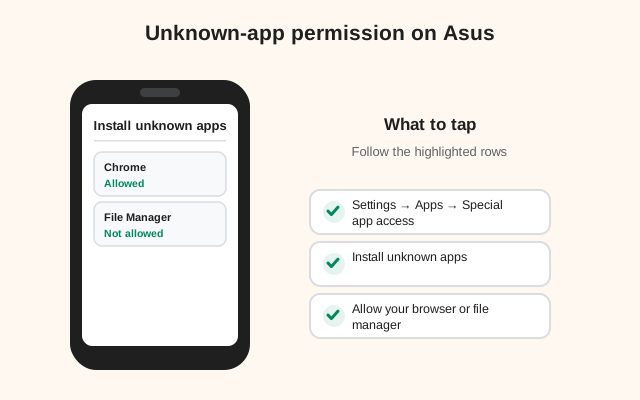
On Asus phones the path is: Settings → Apps & notifications → Special app access → Install unknown apps → select your browser → Allow from this source.
Three notes:
- It is per-app, not global. You allow the browser (or the file manager, if you downloaded on a computer and transferred the file; see PC-to-phone transfer). Never enable it for apps that have no business installing things.
- On newer ZenUI/Android 13+ builds the path may read Settings → Apps → Special app access → Install unknown apps. Same destination, slightly shorter path.
- After installing, you can switch it back off. The permission is only needed at install and update time. Toggling it off afterward is good hygiene. The updater will prompt you to re-allow when the next update arrives.
If the "Install" button appears dimmed or nothing happens when you tap it, the usual cause is a screen overlay (a floating app like a blue-light filter or chat head). Android blocks installs while overlays are active. Dismiss floating apps and try again.
Mobile Manager: the Asus layer
Mobile Manager is Asus's system app for power, memory, and auto-start management. It is the layer most likely to break Signal notifications on Asus phones. Even with Android's own battery optimization set correctly, Mobile Manager can independently put Signal to sleep.
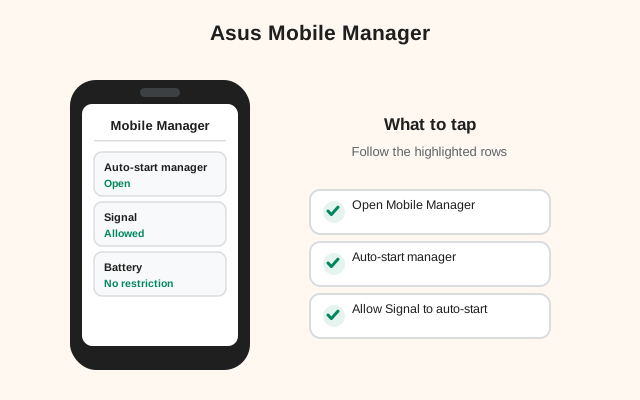
Open Mobile Manager and check three places:
- Auto-start Manager: make sure Signal is allowed to auto-start. If it is blocked here, Signal cannot restart its background connection after a reboot. You would get no messages until you manually open the app after every restart.
- Battery optimization / PowerMaster: set Signal to not optimized (wording varies: "Don't optimize" or excluded from auto-clean). Mobile Manager's memory cleaner can also kill Signal. Exclude it there too.
- Notification manager: if Mobile Manager has a notification-control section, confirm Signal is allowed.
ROG Phone extra: Armoury Crate's system modes (X Mode, Dynamic) tune performance profiles. In a gaming profile the phone may deprioritize background apps more aggressively. If notifications only misbehave after gaming sessions, check whether the active profile restricts background activity, and consider switching back to a balanced profile when you are done playing.
After configuring, reboot the phone and confirm Signal reconnects on its own. Send yourself a test message without opening Signal first. That single test validates the whole chain.
Notifications and battery settings
With Mobile Manager handled, the remaining checklist is the standard Android one:
- Notification permission: on Android 13+ Signal asks at first launch. Tap Allow. Verify at Settings → Apps → Signal → Notifications.
- Battery: Settings → Apps → Signal → Battery → Unrestricted (the Mobile Manager exclusion too; yes, both layers matter).
- Do Not Disturb: check that no scheduled DND rule is silencing Signal, and add Signal as a DND exception if you use DND at night but still want calls to ring.
- Data Saver: if enabled, exempt Signal so background data is not throttled on mobile data.
Test like you mean it: lock the phone, wait two minutes, message yourself from another device. Seconds is a pass. If it fails after all of the above, our battery troubleshooting guide covers the deeper causes.
Updates, registration, and extras
Updates: the website build updates itself. It checks Signal's servers and prompts you to install new versions. Current build: 8.29.3. Approve the unknown-source confirmation when it appears; that is normal. If an update ever fails with a signature error, re-download from signal.org/android/apk rather than a mirror. Our auto-update guide explains why.
Registration: standard. Phone number, SMS code, done. On ROG Phone, if the SMS code is delayed, check that your SMS app is not being battery-optimized either; code autofill needs the SMS app awake to read the incoming message.
Extras worth knowing: Asus's dual apps / Twin Apps feature can clone Signal if you run two numbers. Our dual-apps guide covers the caveats (cloned apps and backups need care). And if you use a second SIM, see Signal on dual-SIM phones.
Related Asus-family reading: our Samsung guide and Xiaomi guide follow the same structure if you are helping someone on a different brand.
A final note on older Asus phones: if you are installing on a Zenfone 6, 7, or 8, or a ROG Phone 3 to 5 still running Android 10 or 11-era ZenUI, the menu names in this guide shift slightly. Look for Settings → Security instead of Apps & notifications for the install-unknown-apps permission, and expect Mobile Manager to be more prominent, since older ZenUI leaned on it harder for battery management. The concepts are identical; only the labels moved. And on those older models, one-time permissions (Android 11+) and the notification permission prompt (Android 13+) may not exist yet, which actually makes the install simpler. Fewer prompts to get wrong. Whatever the age of the hardware, the non-negotiables are the same: genuine APK from Signal's page, battery exemption set, and a backup before any build switch.
Frequently asked questions
How do I install the Signal APK on an Asus Zenfone?
Download the APK from signal.org/android/apk, allow your browser at Settings → Apps & notifications → Special app access → Install unknown apps, and install. Then configure Mobile Manager so Signal isn't put to sleep.
Why are Signal notifications delayed on my ROG Phone?
Usually Mobile Manager or an Armoury Crate game profile restricting background apps. Allow Signal's auto-start in Mobile Manager, exclude it from battery optimization, and check the active system mode.
Can I install the Signal APK over the Play Store version on Asus?
No. Different signing keys, so Android blocks it on every brand. Back up, uninstall the Play version, then install the APK. See our migration guide.
What is Asus Mobile Manager and why does Signal need it configured?
It's Asus's system app managing auto-start, battery, and memory. If Signal isn't exempted there, it can be killed in the background even when Android's own battery setting looks correct.