
How to Check That Your Signal Install Actually Worked
Published: October 7, 2026 · Updated: October 8, 2026
You tapped the APK, the install finished, and Signal opened. So you are done, right? Not quite. A finished install only proves the file unpacked. It does not prove you installed the real Signal, that the build is current, or that everything you rely on (messages, calls, backups, updates) actually works. This page gives you an 8-point verification checklist. Run it once, right after installing: confirm the package name is org.thoughtcrime.securesms and the version reads v8.29.3, sanity-check the permissions, send a test message and make a test call, write your backup passphrase on paper, check that notifications arrive, and confirm the app can check for updates. Each check below tells you what it proves and exactly what to do if it fails. Ten minutes now saves you from discovering a broken install at the worst possible moment.
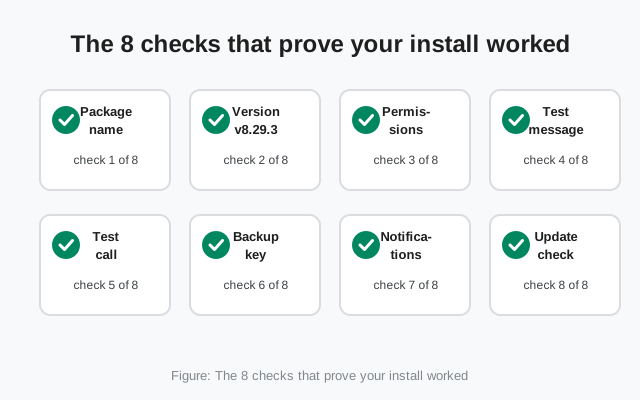
A finished install is not a proven install
Most people treat the install like a finish line. The progress bar completes, the icon appears, the app opens, and they move on. The problem is that Android's installer is not very picky: it will happily install a file that is corrupted, outdated, signed by the wrong key, or a lookalike app wearing Signal's clothes. The installer only checks that the file is a valid package. It does not check that it is the right package.
That is why verification is a separate job from installation, and it matters more for a sideloaded APK than for a Play Store install. The Play Store does some of this checking for you: it confirms the publisher, it handles updates, and it will not serve you a tampered file. When you install the APK directly from Signal's download page, those guardrails are yours to run. The good news is that none of it is hard. You already did the difficult part by getting the file from the right place; what follows is just confirming that everything landed the way it should.
Think of it the way you would think of buying a used car. The seller hands you the keys. That is the install. You still check the engine, the paperwork, and the tires before you drive it home. That is this checklist.
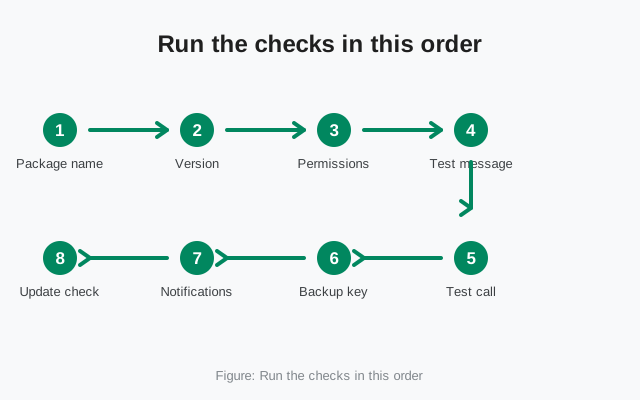
The 8-point checklist (and what each check proves)
Here is the full list in one place. The sections below walk through each check with screenshots-style directions and fixes, but if you already know your way around Android, this table alone is enough.
| Check | Where to look | What it proves | If it fails |
|---|---|---|---|
| 1. Package name | Settings → Apps → Signal → App info (or a file manager that lists packages) | You installed the real Signal build, not a lookalike with a similar icon | Anything other than org.thoughtcrime.securesms → uninstall immediately, it is not Signal |
| 2. Version | Signal → Settings → Help → Version | You have the current website build (v8.29.3 at the time of writing) | Older build → run the update check; far behind → re-download from Signal's page |
| 3. Permissions | App info → Permissions | The app holds only the permissions a messenger needs: no surprises | Anything bizarre → you may have a tampered build; uninstall and re-download |
| 4. Test message | Any chat | Registration worked and messages send and receive | Message stuck → check your number registration and network connection |
| 5. Test call | Any contact | Calls work: microphone and network path are fine | No audio → check the microphone permission and battery restrictions |
| 6. Backup passphrase | Signal → Settings → Chats → Chat backups | You can restore your chats if the phone is lost or dies | Not set up → enable it now and write the 30-digit passphrase on paper |
| 7. Notifications | Lock the phone, have someone message you | Messages reach you when the app is closed | Nothing arrives → check notification permission and battery optimization settings |
| 8. Update check | Signal's own update prompt (the website build checks itself) | The build can update itself without the Play Store | Never prompts → compare versions manually on Signal's download page |
A note on order: the list is arranged so that the security checks (1–3) come first. If the package name is wrong, nothing else matters. Stop there and uninstall. The functional checks (4–8) only make sense on a build you have already confirmed is genuine.
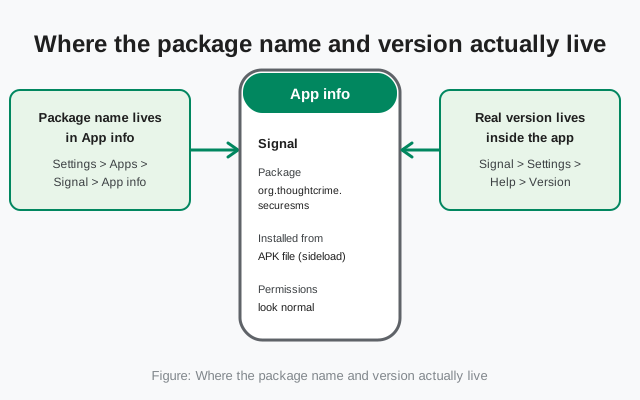
Checks 1-2: package name and version
These two are the quick identity checks. The package name catches sloppy fakes; the version proves it is current Signal. Both take under a minute. (The decisive proof is the signing fingerprint, covered just below.)
Check 1: the package name. Every Android app has a unique package name, and Signal's is org.thoughtcrime.securesms: the same for the website build and the Play Store build. On some phones you can see it directly: open Settings → Apps → Signal → App info and look at the bottom of the screen. Stock Android hides it on many phones, which is annoying but not a dead end. Alternatives: install any file-manager app that lists installed packages, or, if you have a computer handy, run adb shell pm list packages | grep thoughtcrime with USB debugging on. What you are looking for is an exact match. Close does not count. A fake app can copy Signal's icon and name perfectly — and a careful fake copies the package name too. Package names are not reserved: nothing stops a malicious APK from declaring itself org.thoughtcrime.securesms. Android only refuses to install two same-named apps side by side, and a differently-signed fake cannot install over the real Signal — but on a phone where Signal was never installed, the fake goes on without complaint. So the package-name check only filters out lazy fakes. The check that actually proves the app is genuine is the signing certificate fingerprint, covered next.
org.thoughtcrime.securesms, so the package name only filters out sloppy fakes. The signing fingerprint is the check that actually proves the app is genuine. We fixed this page the day we caught the mistake.Check 2: the version. Open Signal itself, tap your profile, go to Settings → Help → Version, and read the number. At the time of writing, the current website build is v8.29.3. If yours matches, you are current. If it is older, do not panic and do not reinstall yet. The website build updates itself, and check 8 covers that. What you do not want to see is a version number that looks nothing like Signal's numbering, or a version field that is blank. Our version-check walkthrough shows both ways to read the number with pictures of each screen.
One more identity check worth doing while you are here, if you checked the file before installing: Signal publishes the SHA-256 fingerprint of its signing certificate on its download page. Re-verified on 2026-10-07, it reads:4B:E4:F6:CD:5B:E8:44:08:3E:90:02:79:DC:82:2A:F6
5A:54:7F:EC:C2:6A:BA:7F:F1:F5:20:3A:45:51:8C:D8
If you verified this fingerprint against the APK before installing, checks 1 and 2 are really just confirming that the installed app matches the file you checked. Belt and suspenders, but this is the kind of thing where belt and suspenders is the correct amount of caution.
Check 3: permissions sanity
Go to App info → Permissions and read the list slowly. You are not auditing code here. You are looking for anything that makes no sense for a messaging app. Signal legitimately needs contacts (to find your friends), the microphone and camera (calls and photo messages), storage or media (sending files), and notifications. What it should never ask for is things like device-administrator access, the ability to draw over other apps for no reason, or accessibility-service control. Those are the permissions malware loves.
Two honest caveats. First, permission lists vary a bit between Android versions and phone brands, so do not panic over wording differences. Panic over categories that do not belong. Second, this check catches crude fakes, not sophisticated ones; a well-made fake can request a perfectly normal permission list. That is why this is check 3 and not check 1. The package name is the hard proof; permissions are the smell test. Our permission guide explains what each Signal permission actually does, so you can tell the difference between “normal” and “normal-looking.”
Checks 4-5: test message and test call
Identity confirmed. Now prove the thing works. These two checks exercise the two halves of Signal: the messaging path and the real-time calling path. They fail for different reasons, which is why there are two of them.
Check 4: send a test message. Pick any contact who has Signal, or message yourself using Signal's “Note to Self” chat, which every account gets. Send something, and watch for the single check mark (sent), then the double check mark (delivered). If the message sends and delivers, your registration is good, your number is verified, and the message pipeline works end to end. If it sits with a clock icon forever, the usual suspects are: registration did not actually complete (go back and finish the SMS-code step), the phone has no working data connection, or the contact you messaged is not actually on Signal. The sideload walkthrough covers the registration hiccups in detail.
Check 5: make a test call. Call the same contact, or anyone patient, for thirty seconds. You are testing three things at once: the microphone permission, the speaker/earpiece audio path, and whether your network lets real-time traffic through. If there is no audio on either side, the fix is almost always the microphone permission (App info → Permissions → Microphone → Allow) or an aggressive battery saver that is throttling the app in the background. If the call connects but the quality is terrible, that is your network, not the install. Try again on Wi-Fi before concluding anything.
Why both? Because they use different infrastructure. Messaging goes through Signal's servers with store-and-forward; calls are peer-to-peer where possible. An install can easily have one working and the other broken, typically because of a single denied permission, and you want to find that out now, not during an important call.
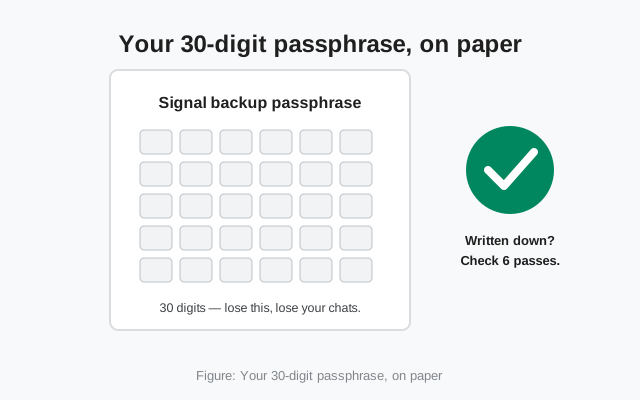
This is the check everyone skips, and it is the one people regret skipping. Signal's chats live on your phone, not in a cloud. That is a privacy feature, and it means there is no “forgot password” rescue for your message history. If the phone is lost, stolen, or factory-reset without a backup, the chats are gone. Permanently. Signal cannot recover them for you because Signal never had them.
Here is the check: open Signal → Settings → Chats → Chat backups and make sure backups are turned on. Signal will show you a 30-digit passphrase. Write it on paper, actual paper, with a pen, and put it somewhere you will find it. Not in a notes app on the same phone (if the phone dies, the notes die with it), not as a screenshot in your gallery (galleries get synced, shared, and backed up to places you did not intend). Paper in a drawer is the boring answer, and boring is the point.
A fresh install is the easiest moment to do this, because there is no old backup to migrate and no history to lose yet. Five minutes now buys you total peace of mind later. Our backup hub walks through the whole setup, including how to restore onto a new phone when the day comes.
Check 7: the notification test
Lock your phone, put it down, and ask someone to send you a Signal message. Then watch. The message should arrive as a notification, sound, vibration, or at least a banner on the lock screen, without you opening the app. This is the single most common “Signal is broken” complaint that is not actually Signal being broken: it is the phone killing the app in the background.
If nothing arrives, work through this list in order:
- Notification permission: App info → Notifications: make sure they are allowed, and that Signal's notification categories are not silenced.
- Battery optimization: this is the big one on Samsung, Xiaomi, Oppo, Vivo, and Huawei phones. Find Signal in Settings → Battery (or “App battery usage”) and set it to Unrestricted / “Don't optimize.” Aggressive battery savers are the number-one killer of Signal notifications on Android.
- Data Saver / background data: if Data Saver is on, make sure Signal is exempted, or it cannot fetch messages while closed.
- Do Not Disturb schedules: check you do not have a DND rule silencing everything at certain hours. Embarrassing, but it happens.
Retest after each change. When the notification arrives on a locked phone, check 7 passes, and you can trust Signal to actually alert you going forward.
Check 8: the update check
The last check is about the future. The website build of Signal does not use the Play Store, so it has its own update mechanism: it checks for new versions itself and prompts you to install them. You want to confirm that machinery works before you are depending on it.
Here is the honest version of this check: there is no “check for updates” button to press on demand. The app checks in the background and shows you a prompt when a new version exists. So the practical test is indirect. First, confirm your version (check 2) matches the current build on Signal's download page. If it matches, the mechanism had its chance to work and your install is current, which is the outcome you care about. If your build is behind and no prompt has appeared after a day or two, do not wait around: download the fresh APK from Signal's page and install it over the old one. Same signing key, so it upgrades cleanly without touching your chats.
Going forward, treat update prompts like the notification test: when one appears, install it promptly. An outdated messenger is a security liability, and the whole point of the website build's self-updater is that you never have to think about it. Our auto-update guide explains exactly what the prompt looks like, so you can recognize it and spot fakes.
If a check fails: red flags and fixes
Most failures have boring explanations and boring fixes. But a few failures mean something is genuinely wrong, and those deserve a clear list:
- Package name is not org.thoughtcrime.securesms. Stop. Uninstall it. That is not Signal, no matter what the icon looks like. Re-download only from signal.org/android/apk/.
- Version number looks fabricated or blank. Same treatment: uninstall, re-download from the real page.
- Permissions include device-admin or accessibility access you never granted. Uninstall. A messaging app has no business there.
- Messages never deliver and registration never completes. Usually network or number trouble, not a bad install. But if a clean reinstall from Signal's page still fails, try the Play-vs-website conflict guide in case an old build is interfering.
- Everything works except notifications. Battery optimization. It is always battery optimization. See check 7.
- The app asks you to “update” from a random website. That is not an update, that is a trap. Updates come from inside the app's own prompt or from Signal's download page. Nowhere else.
And the meta-rule: if more than two checks fail at once, do not debug. Reinstall. Download a fresh copy from Signal's page, verify the SHA-256 fingerprint (4B:E4:F6:CD:5B:E8:44:08:3E:90:02:79:DC:82:2A:F6, re-verified 2026-10-07), install over the old build, and run the checklist again. A clean reinstall takes five minutes; chasing three separate mysteries takes an afternoon.
5A:54:7F:EC:C2:6A:BA:7F:F1:F5:20:3A:45:51:8C:D8
from Signal's official site — file hosted by Signal, not by us
Frequently asked questions
Where exactly do I find the package name?
Stock Android often hides it. Check Settings > Apps > Signal > App info first and look at the bottom of the screen. If it is not there, use a file-manager app that lists installed packages, or connect the phone to a computer and run 'adb shell pm list packages' with USB debugging enabled. You are looking for an exact match on org.thoughtcrime.securesms.
My version is older than 8.29.3. Should I reinstall?
No. The website build updates itself, so give it a day or two to offer the update. If no prompt appears, download the fresh APK from https://signal.org/android/apk/ and install it over the old build. Because both are signed with Signal's key, it upgrades in place and your chats stay put.
Can I skip the backup check on a fresh install?
You can, but a fresh install is the cheapest moment to set it up: there is no old backup to migrate and no history at risk yet. Turn on Settings > Chats > Chat backups and write the 30-digit passphrase on paper now. Future you will be grateful.
Do I redo the whole checklist after every update?
Not the full list. After a routine update, one test message is enough to confirm nothing broke. Redo the package-name and fingerprint checks only if you ever install from a new source or a new device.
The test call has no sound. Is the install broken?
Almost certainly not. No audio on calls is usually the microphone permission (App info > Permissions > Microphone > Allow) or an aggressive battery saver throttling Signal in the background. Fix those two, retest, and only then suspect anything deeper.
Keep reading
- our version-check walkthrough: find the exact build number two different ways
- the permission guide: what each Signal permission actually does
- how website-build updates work: what the self-update prompt looks like
- the backup hub: set up chat backups before you need them