
Signal video call camera not working? Fix it step by step
Published: October 7, 2026 · Updated: October 8, 2026
If your camera doesn't work in Signal video calls, check four things in order: camera permission, whether another app is holding the camera, then restart Signal, then restart the phone. That order matters. Nine times out of ten, one of the first three fixes it, and you never need to touch anything risky. This guide walks through each step on Android, explains the Android 13+ permission options (one-time and ask-every-time), covers front vs rear camera, and shows you how to tell a dead camera sensor from a software problem. It applies to the official Signal build (Play Store or the website APK, current version 8.29.3, package org.thoughtcrime.securesms).
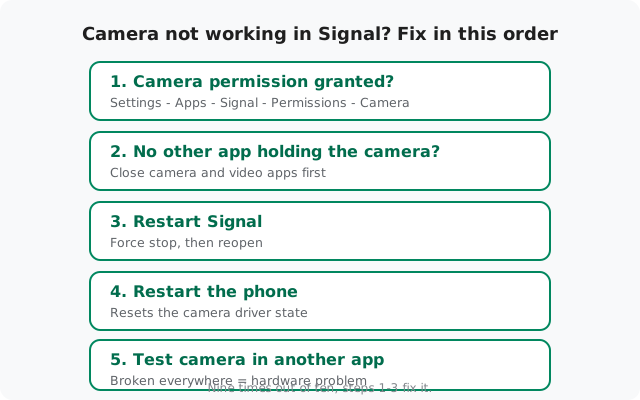
Match your symptom to the cause
| What you see | Most likely cause | Go to |
|---|---|---|
| Camera preview is black before the call even starts | Permission denied, or the camera is busy | Fix 1 or Fix 2 |
| A message that the camera is in use or unavailable | Another app is holding the camera | Fix 2 |
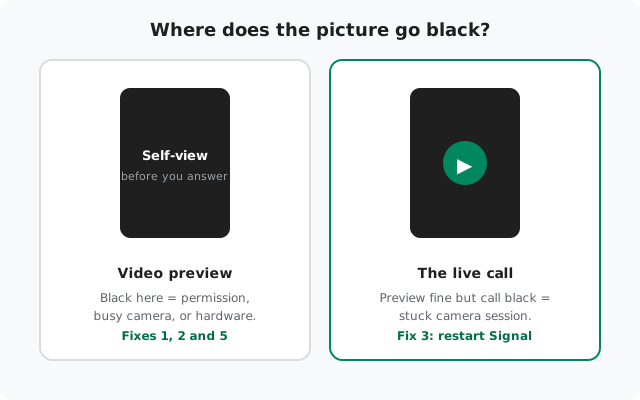
| Preview works fine, but the picture goes black once the call connects | Stuck camera session inside Signal | Fix 3 |
| Video worked fine until a Signal or Android update | App glitch after the update | Fix 3, then Fix 4 |
| Camera is black in every app, not just Signal | Hardware or driver problem | Fix 5, then a repair shop |
| Front camera works but the rear doesn't (or the reverse) | One camera module has failed | Fix 5, then a repair shop |
| The other person sees you fine, but you see only yourself blacked out | Your phone's camera side | Fixes 1–4 |
Match your row first, then work that fix. If the first fix doesn't help, continue down the list in order. Camera problems sometimes stack: for example a permission set to "ask every time" plus another app holding the camera.
Fix 1: check the camera permission
This is the cause more often than anything else. Signal can't open the camera without Android's permission, and the permission can be missing for reasons that have nothing to do with what you did yesterday:
-
Open Signal's permission screen
Go to Settings → Apps → Signal → Permissions → Camera. Everything you need is on this one screen.
-
Pick "Allow only while using the app"
This is the right choice for Signal. The camera works whenever a call is active, and nothing more. Don't pick "Don't allow" (obviously), and think twice about "Ask every time" (explained below).
-
Check for auto-removed permissions
If you haven't made a video call in a few months, Android may have removed the camera permission on its own. This is a real Android feature (unused permissions get auto-removed), not a bug. If the permission was silently revoked, this is where you put it back.
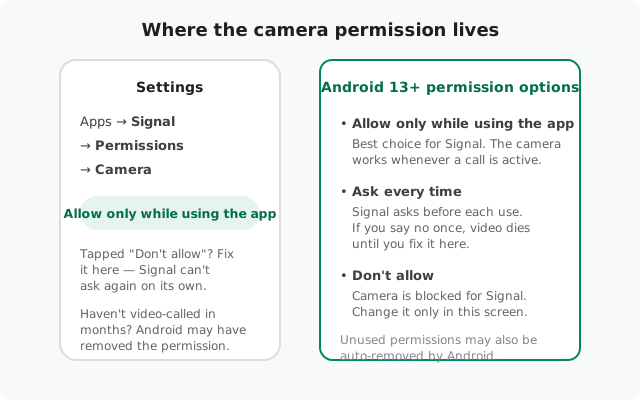
One more permission quirk worth knowing: on some phones, the camera permission page sits next to a toggle for "remove permissions if app is unused." If your phone shows it, consider turning that off for Signal. It stops Android from quietly revoking the camera permission again between video calls.
Fix 2: free the camera from other apps
Android lets only one app hold the camera at a time. If another app grabbed it first, Signal gets a black screen or a "camera in use" type message. The fix takes about thirty seconds:
-
Close the stock camera app
Open the Recents screen and swipe the camera app away. A camera app sitting in Recents with a live preview can still hold the camera.
-
Close other video and camera apps
Any app with a camera preview counts: other video-call apps, camera apps, even some social apps with the camera open. Swipe them all away from Recents.
-
Force stop the stubborn ones if needed
If an app won't let go (it reappears in Recents), go to Settings → Apps → that app → Force stop. Then open Signal and try the video call again.
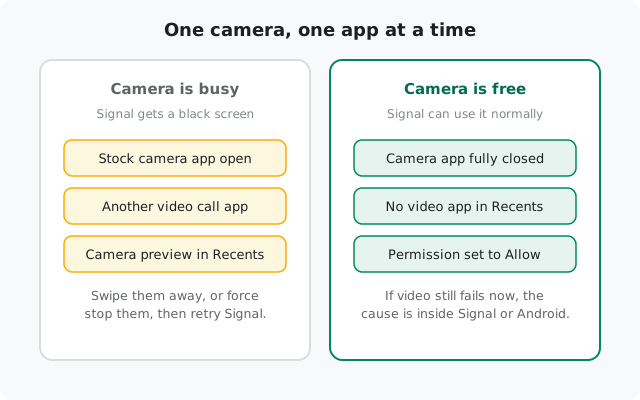
This fix also explains a confusing pattern: your camera works in the morning and breaks in the afternoon. Something you opened in between (a video call in another app, the camera for a quick photo) is still holding it.
Fix 3: restart Signal
If the permission is fine and nothing else is holding the camera, the camera session inside Signal may simply be stuck. Force-stopping the app releases it:
-
Force stop Signal
Go to Settings → Apps → Signal → Force stop and confirm. This ends the app completely, including any stuck camera session.
-
Reopen Signal and test
Open Signal fresh and start a video call. This is the step that fixes the classic "preview worked, call went black" symptom from the table above.
If the camera breaks again after a day or two of working, repeat this step before trying anything bigger. Some phones (especially aggressive battery managers on Xiaomi, Oppo, and Vivo) keep putting Signal into odd states, and a force stop is the cheapest reset available.
Fix 4: restart the phone
A full restart resets the camera driver and every app holding camera state. It's boring and it works. Drivers are low-level software, and they get wedged too. Hold the power button, choose Restart, and test a video call after the phone comes back up.
If the camera was failing right after a system update, this step is even more likely to help: updates often leave camera drivers in a half-initialized state until the next reboot.
Fix 5: test the camera in another app
This step isn't a fix. It's the test that tells you whether a fix is even possible on your end:
-
Open your phone's stock camera app
Try taking a photo and recording a short video. Photo mode and video mode use the camera differently, so test both.
-
Test front and rear
Switch between the front and rear cameras. Note exactly which combinations fail: front photo, rear photo, front video, rear video.
-
Read the result
If the camera is broken in the stock camera app too, the problem is hardware or the camera driver. No app setting will fix it, and your next stop is the phone maker's support or a repair shop. If the stock camera app works perfectly and only Signal fails, the problem is software, and the last resort below is worth trying.
Be precise when you describe the failure to support or a repair shop: "rear camera black in every app, front camera fine" gets you a much faster diagnosis than "camera not working."
Front vs rear, preview vs call
Two distinctions that save a lot of confusion:
Front camera vs rear camera
Video calls normally use the front camera. If the call screen shows a camera-switch button, try switching to the rear camera and back. On rare occasions the app picks the wrong camera module and gets stuck. If one camera works and the other doesn't, in every app, that module has failed physically. Signal can't use a camera that the phone itself can't see.
Video preview vs the live call
The little self-view before you answer is the preview. The picture after the call connects is the live call. They fail for different reasons: a black preview points at permission, a busy camera, or hardware (Fixes 1, 2, 5). A fine preview that turns black in the call points at a stuck camera session (Fix 3). Knowing which one you saw tells you where to start.
Also note the other side of the call: if you see the other person fine but they can't see you, the problem is your camera, not the network. Network problems show up as freezing or stuttering, not as a clean black screen (covered in our call-freezing guide).
Last resort: reinstall with a backup
If the camera works in every other app but refuses to work in Signal after all five fixes, a clean reinstall is the honest last step. A corrupted install can break camera access in ways no setting fixes:
-
Back up your chats first
Reinstalling without a backup deletes your message history permanently. Follow our backup-before-reinstall checklist and confirm the backup actually completed.
-
Uninstall, then reinstall from Signal's own page
Uninstall Signal, then download the fresh build from signal.org/android/apk (currently 8.29.3), never from a random APK mirror.
-
Restore, then grant the camera permission on first launch
Restore your backup during setup, and when Signal asks for the camera, choose "Allow only while using the app". Don't reflex-tap "Don't allow."
If even a clean reinstall doesn't fix it, you've ruled out everything software on your side. At that point the realistic candidates are a broken camera driver from a bad system update (wait for the phone maker's patch) or failing hardware (repair shop).
from Signal's official site, file hosted by Signal, not by us
Frequently asked questions
Why does Signal say it can't access my camera?
Almost always the permission. Go to Settings → Apps → Signal → Permissions → Camera and set it to 'Allow only while using the app'. Android may also have auto-removed the permission if you haven't video-called in a while. Check Fix 1 above.
My camera works in the camera app but not in Signal. Why?
Either the permission is wrong, or another app is holding the camera. Close every camera and video app from Recents, force stop anything stubborn, then try Signal again. See Fix 2.
What does 'Ask every time' mean for the camera on Android 13+?
It's a permission option where Signal must ask before each camera use. If you tap 'no' once, video silently breaks until you fix it in Settings → Apps → Signal → Permissions. 'Allow only while using the app' avoids this entirely.
Front camera works but the rear doesn't in Signal. Is that a Signal bug?
Almost certainly not. If one camera fails in every app, that camera module has failed physically. Test in the stock camera app; if it fails there too, it's a repair-shop job, not an app problem.
Video preview is fine but the call shows a black screen. What now?
That's the stuck camera session pattern. Force stop Signal (Settings → Apps → Signal → Force stop), reopen it, and try again. If it keeps happening, restart the phone.
Will reinstalling Signal fix the camera?
Only as a last resort, and only with a chat backup done first. Reinstalling fixes corrupted installs, but most camera problems are permissions or a busy camera. Try Fixes 1–5 before you reinstall.
Related: calls not connecting at all, microphone problems on calls, choppy call quality, camera picker issues, backup before reinstall, and the troubleshooting hub