
Signal Camera or Photo Picker Broken? Fix It
Published: October 7, 2026 · Updated: October 8, 2026
You tap the camera button in Signal and get a black screen. Or you tap the gallery button and the picker opens empty. Signal camera not working is actually two separate problems wearing one costume: the in-app camera (which needs camera permission) and the photo picker (which needs access to your photos). They break for different reasons, and the Android 13+ "select photos" partial-access option is behind a large share of blank-picker complaints. This guide separates the two and fixes each.
from Signal's official site — file hosted by Signal, not by us
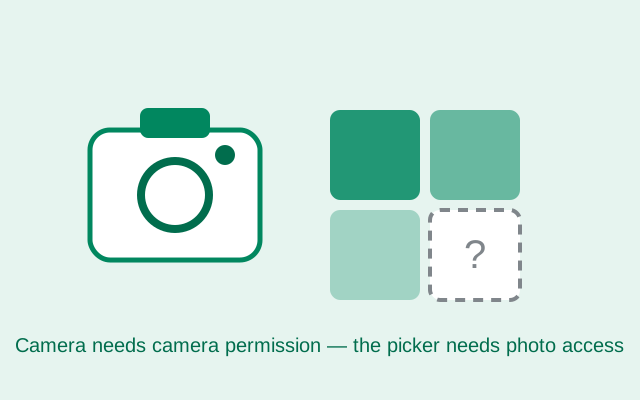
Camera or picker: which one is broken?
Signal gives you two ways to attach a photo, and they are different code doing different things:
- The camera button opens Signal's in-app camera: a live viewfinder inside the app. It needs the camera permission.
- The gallery/photo button opens a picker showing your existing photos. It needs photo or media access, a completely separate permission.
Test them separately. If the camera is black but the picker works, it is the camera permission. If the picker is blank but the camera works, it is photo access. If both are broken, suspect something bigger (an OS-level glitch or a very outdated app) and skip to the restart flow.
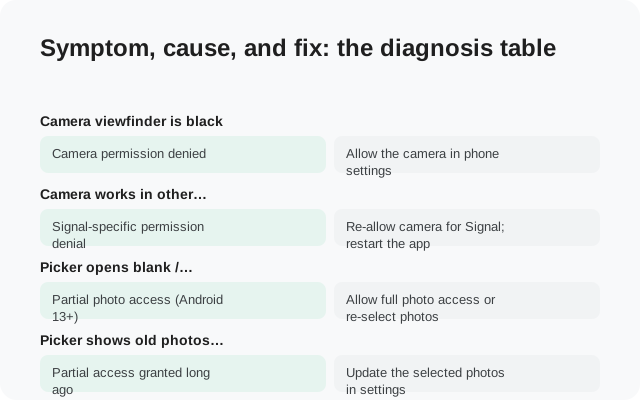
Symptom, cause, and fix: the diagnosis table
| What you see | Likely cause | Fix |
|---|---|---|
| Camera viewfinder is black | Camera permission denied | Allow the camera in phone settings |
| Camera works in other apps, not Signal | Signal-specific permission denial | Re-allow camera for Signal; restart the app |
| Picker opens blank / nearly empty | Partial photo access (Android 13+) | Allow full photo access or re-select photos |
| Picker shows old photos only | Partial access granted long ago | Update the selected photos in settings |
| A different gallery app opens | Another app set as default picker | Clear that app's defaults |
| Camera crashes the app | App glitch or corrupt install | Restart; update; reinstall as last resort |
| Both camera and picker broke at once | OS update revoked permissions | Re-check all permissions; restart the phone |
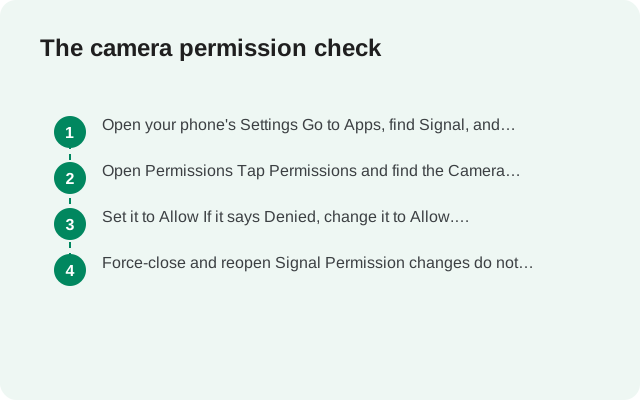
The camera permission check
A black viewfinder is a denied camera permission until proven otherwise. Android asks once, and if you tapped "Don't allow" in a hurry months ago, the in-app camera has been dead ever since, silently, with no error message worth noticing.
Open your phone's Settings
Go to Apps, find Signal, and open it.
Open Permissions
Tap Permissions and find the Camera entry.
Set it to Allow
If it says Denied, change it to Allow. "Ask every time" will interrupt you mid-photo. Allow it outright.
Force-close and reopen Signal
Permission changes do not always take effect in a running app. Close Signal fully, reopen it, and test the camera button.
Also check the system-wide camera kill switch if your phone has one. Some phones have a quick-settings tile that disables the camera for all apps. If your phone's own camera app is also black, the problem is below Signal entirely: a system setting, or hardware.
In-app camera shows a black screen
Permission allowed, still black? Work down this list:
- Another app is using the camera. A video call, a camera app left open in the background, or a meeting app can hold the camera. Close them and retry.
- Restart the phone. The camera hardware stack gets stuck more often than anyone admits; a full restart resets it.
- Test the system camera app. If your phone's built-in camera is also black after a restart, that is a system or hardware problem. Check for OS updates, and if it persists, it is a repair question.
- Check for a case or cover blocking the lens. It sounds silly until it happens to you: a sliding camera cover or a misaligned case.
If the system camera works and Signal's does not, with the permission allowed, update Signal. A very old version can have camera bugs fixed long ago. The latest version page shows the current website build.
Photo picker opens blank or shows few photos
The picker problem is subtler. You tap the gallery button expecting your photos, and you get an empty grid, or a grid with a handful of old photos and nothing recent. Nine times out of ten on a modern phone, this is the partial-access feature described in the next section.
The quick checks first:
- Wait a moment. On a phone with tens of thousands of photos, the picker can take a few seconds to populate. An "empty" picker that fills in after five seconds was just slow.
- Check the permission. In Settings, Apps, Signal, Permissions, look at "Photos and videos" (the exact name varies by Android version). If it is denied, the picker has nothing to show.
- Look at what it shows. A picker showing a few old photos but nothing recent is the fingerprint of partial access. Read on.
Android 13+ partial photo access, explained
Since Android 13, when an app asks for your photos, the system offers three choices: Allow all, Select photos (partial access: you hand-pick which photos the app may see), or Don't allow. "Select photos" is great for privacy, but it confuses pickers: Signal can only show the photos you selected, so the picker looks broken: blank, or showing a stale handful from months ago.
This is the number-one cause of "Signal's photo picker doesn't work" on modern phones, and the fix is a settings change, not an app fix:
Open Signal's app permissions
Settings, Apps, Signal, Permissions, then the Photos and videos entry.
Choose your level
Either switch to Allow all so the picker sees everything, or keep Select photos and use the selection screen to add the photos and albums you want Signal to see. New photos will not appear until you add them to the selection.
Restart Signal
Close the app fully and reopen it so the picker reloads with the new access.
An honest note on the tradeoff: "Select photos" is genuinely more private. Signal only ever sees what you hand it. If you share photos rarely, keeping partial access and adding photos to the selection as needed is the privacy-conscious choice; it just means remembering that new photos need adding. If you share photos constantly, full access saves the friction. Either way, now you know why the picker looked empty. It was not broken. It was obeying your privacy choice.
When another gallery app hijacks the picker
Sometimes tapping the photo button opens a completely different app (your manufacturer's gallery, Google Photos, or a third-party file manager) instead of Signal's picker. That happens when that app was set as the default handler, or when Signal defers to the system picker and the system routes it oddly.
- Clear the other app's defaults. In Settings, Apps, find the gallery app that keeps opening, and clear its "set as default" / "open by default" settings.
- Check for a "use system picker" style option. Some phones let you choose the picker behavior per app. Worth a look if the option exists on your device.
- Update both apps. Picker-routing bugs get fixed on both sides; make sure Signal and the gallery app are current.
This is cosmetic more than functional. The other gallery can usually still pick the photo fine. It is worth fixing only if it annoys you or if the hijacking app fails to return the photo to Signal.
The restart flow that clears most of it
When permissions look right and things still misbehave, do the full restart sequence in this order, because each level resets more state:
Force-close Signal
Close it from the recent-apps screen so the process actually stops, then reopen and test.
Restart the phone
A full reboot resets the camera hardware, the media scanner, and stuck permission states. Test again.
Clear Signal's cache
Settings, Apps, Signal, Storage, Clear cache. This removes temporary files only. Chats and settings survive. The cache-clearing guide details what each option deletes.
Update Signal
Camera and picker bugs get fixed in updates. If you sideloaded the APK, grab the current build from Signal's official APK page.
That sequence resolves the large majority of camera and picker issues that are not permission problems. What remains after it is either a system/hardware fault (system camera also broken) or a corrupt install.
Reinstall as a last resort: backup first
If the system camera works, permissions are allowed, the phone is restarted, the cache is cleared, and the app is updated (and Signal's camera or picker still fails), the install itself may be corrupt. Reinstalling is the last resort, and it has one non-negotiable prerequisite:
Then uninstall, reinstall from Signal's official APK page, restore from backup, and re-check the camera and photo permissions on first launch. Android asks again after a reinstall, and tapping "Don't allow" in a hurry restarts the whole cycle.
If camera trouble is part of a bigger media problem (attachments will not send either), the media-sending guide covers the shared causes, and the stories guide covers the camera as used for stories specifically.
FAQ
Why is Signal's camera showing a black screen?
The camera permission is denied in almost every case. Go to your phone's Settings, then Apps, then Signal, then Permissions, and set Camera to Allow. Force-close and reopen Signal afterward so the change takes effect.
Why is Signal's photo picker blank?
On Android 13 and newer, you probably granted 'Select photos' partial access, so Signal can only see the photos you picked. Change it to Allow all, or add your photos to the selection, in Settings, Apps, Signal, Permissions, Photos and videos.
Why does a different gallery app open instead of Signal's picker?
Another app was set as the default handler. Clear its defaults in Settings, Apps, and Signal's picker should take over again.
Signal's camera doesn't work but my phone's camera does. Why?
The system camera working means the hardware is fine. The problem is Signal's permission or a stuck app state. Re-allow the camera permission, force-close Signal, restart the phone, and update the app.
Should I give Signal access to all my photos?
It's a tradeoff. Full access makes the picker just work; 'Select photos' partial access is more private but means new photos won't appear until you add them to the selection. Pick based on how often you share photos.
Will reinstalling Signal fix the camera?
Only as a last resort, after permissions, restarts, cache-clearing, and updates have all failed. Back up first with your 64-character recovery key. Uninstalling without it loses your message history.
Keep reading
- when photos won't send either: media sending fixes
- what clearing cache actually deletes: cache-clearing guide
- back up before any drastic fix: Android backup guide
- the camera as used for stories: stories guide
- video call camera not working: the camera fix guide