
How to install the Signal APK on Realme phones
Published: October 7, 2026 · Updated: October 8, 2026
Realme phones run Realme UI: built on Oppo's ColorOS foundation, with Realme's own Phone Manager on top. Sideloading Signal is easy once you know the permission path and recognize the Phone Manager scan for what it is: routine, expected, and not a warning about Signal. Download the official Signal APK from signal.org/android/apk (current website build 8.29.3) and follow the steps below.
from Signal's official site — file hosted by Signal, not by us. signal.org/android/apk
Which Realme UI are you on?
Realme UI has gone through versions 1 to 6 (and counting), each tied to an Android version: Realme UI 5 sits on Android 14, Realme UI 6 on Android 15, and so on. Check yours at Settings → About device.
For this guide the version barely matters: the sideload permission has lived in the same place across recent Realme UI versions, and the Phone Manager scan behaves the same. Older Realme UI 1/2 phones use slightly different labels. If a menu name below does not match, look for the nearest equivalent under Security. The steps are also nearly identical on Oppo's ColorOS, covered in our Oppo install guide.
| Realme UI version | Android base |
|---|---|
| Realme UI 3 | Android 12 |
| Realme UI 4 | Android 13 |
| Realme UI 5 | Android 14 |
| Realme UI 6 | Android 15 |
The permission path below is stable across all of these. What changes between versions is mostly cosmetic: icon shapes, the exact wording of the scan screen. If a label in this guide does not match your phone word-for-word, use the Settings search bar: type "unknown apps" or "battery" and Android jumps you to the right screen regardless of version.
Install steps
-
Download the official APK
Open signal.org/android/apk in your browser and download the file. Current website build: 8.29.3, package
org.thoughtcrime.securesms. -
Allow the install
Open the file and grant the unknown-app permission to your browser. Exact path below.
-
Verify the fingerprint
Compare Signal's published SHA-256 fingerprint with your file before installing. How to verify.
-
Let Phone Manager scan
The built-in scan runs during install. Expected, explained below.
-
Install, open, register
Tap Install, then Open, then register your number.
Watch out for Realme's "Hot Apps" and "Hot Games" folders on the home screen: these are sponsored app suggestions, and they occasionally include apps with Signal-like names and icons. They are not the official Signal, and installing from there bypasses every verification step on this page. If you want Signal, there is exactly one correct source, signal.org/android/apk, typed by you, verified by fingerprint. Treat any Signal lookalike in a sponsored folder as advertising, not as a download source.
The unknown-app permission on Realme UI
The path on recent Realme UI:
Settings → Security → Install unknown apps → select your browser → Allow.
On some versions it appears as Settings → Privacy → Install unknown apps. Either way it is the standard per-app grant: allow your browser, install Signal, revoke afterward if you like. Never grant it to apps you do not know and trust.
The Phone Manager scan at install
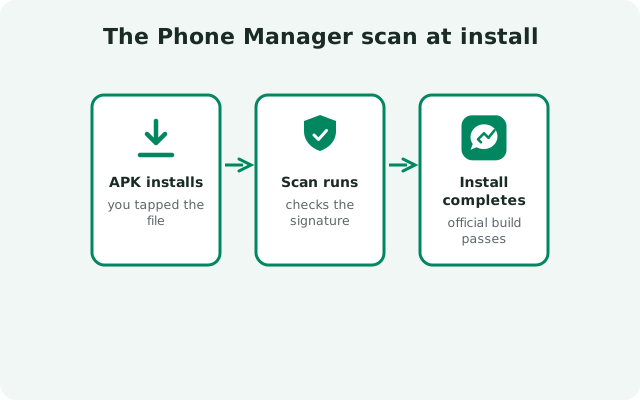
Realme's Phone Manager runs a security scan on every sideloaded app and shows you the result before the installer continues. What you are seeing:
- A routine scan, not a warning. Phone Manager does this for all APK installs. The genuine Signal APK passes it.
- Let it finish, then tap Install. There is nothing to configure and nothing to worry about.
- If Play Protect is present, you may see its separate "unknown app" notice too, which is also routine for sideloads. Our Play Protect guide decodes its messages.
As always, the scan is hygiene and the fingerprint is proof: only install because the SHA-256 fingerprint matched what Signal publishes, not because a scan screen looked reassuring.
Realme UI's extra battery layers, beyond the main screen: Sleep standby optimization (Settings → Battery → More settings) puts idle apps to sleep aggressively overnight. Disable it, or exempt Signal, if messages stop arriving while you sleep. Some versions also include Deep optimization / quick freeze for rarely-opened apps; a daily-driver Signal is rarely frozen, but a Signal install on a secondary device can be. And Game Space / GT Mode: gaming modes can hold notifications while active. If alerts only vanish mid-game, the game mode is the cause, not Signal. With the main checklist above plus these three, there is nowhere left for a notification problem to hide on Realme UI.
The notification survival kit
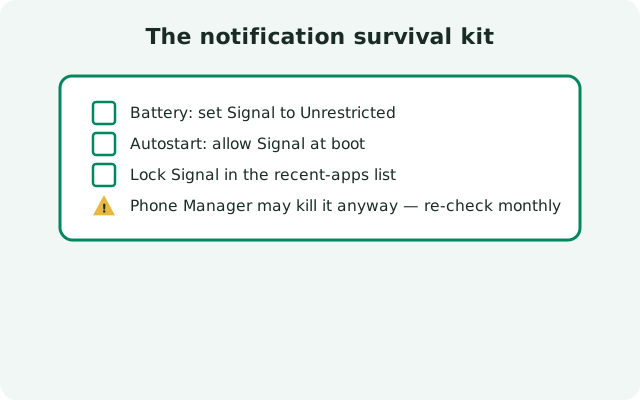
Realme UI manages background apps firmly, so run through this checklist. It fixes the large majority of delayed-notification complaints on Realme phones:
- Allow background activity. Settings → Battery → App battery management → Signal → Allow background activity.
- Allow auto-launch. Settings → Apps → App management → Signal: enable auto-launch / allow background start where offered.
- Lock Signal in recents. In the recent-apps view, lock Signal's card so swiping it away does not kill the app.
- Confirm notifications. Settings → Notifications & status bar → Signal: allowed with sound.
Then the screen-off five-minute test with a message from another device. Still late? Work through notification troubleshooting.
Getting the APK onto the phone without a browser download? Two supported alternatives: USB from a computer: download the APK on your PC from signal.org/android/apk, copy it to the phone's Download folder over USB, then tap it in the file manager. And phone-to-phone sharing (Realme Share, Nearby Share, or Files by Google): receiving the APK from a friend's phone is fine, since it is the same official file, but verify the fingerprint after the transfer, because the file passed through another device. What never counts as an alternative: a "Signal.apk" from a random Telegram channel or file host. The source is the security model; keep it official.
If your Realme is in Simple Mode (the simplified launcher for less technical users), the Settings layout looks different from the paths in this guide. Switch back to standard mode first (Settings → Special features → Simple mode, toggle off). All the permission and battery paths referenced here assume the standard Realme UI layout. Simple Mode hides the very screens you need, which makes following any technical guide frustrating; five seconds toggling it off saves twenty minutes of hunting.
Updates, registration, and extras
- Updates: the website build updates itself. APK update guide; latest-version page.
- Registration: number → SMS code (or voice call) → profile → PIN. SMS troubleshooting.
- First run: first-run guide and security checklist.
- Permissions: what each permission means.
- Already on the Play version? Back up with Secure Backups, uninstall, install the APK, restore: the checklist. Other errors: install-error guide.
- New phone: transfer walkthrough.
Dual-SIM note for Realme owners: most Realme phones take two SIMs and Signal registers one number. Choose which SIM gets the verification SMS before you start, keep it active, and set it as the SMS default under Settings → Mobile network if codes go astray. Registration only needs the SMS to reach the number you entered. Data can come from either SIM. Persistent code problems are covered in SMS troubleshooting.
Frequently asked questions
Is Phone Manager saying Signal is unsafe?
No. Phone Manager scans every sideloaded APK as routine. It is not singling out Signal. The genuine file passes. Treat the SHA-256 fingerprint match as your proof, not the scan screen.
Why do my Signal notifications arrive late on Realme?
Realme UI's battery management restricting Signal in the background. Allow background activity for Signal, enable auto-launch, and lock it in recents. That resolves most cases.
Can I install the APK without removing the Play Store version?
No. Same package name, different signing keys. Android will not install one over the other. Back up, uninstall the Play version, then install the APK.
Does the website build work with Realme's App Market?
You do not need the App Market at all. The website build updates itself. If the market lists Signal, check the developer name (Signal Foundation) before trusting it, same as any store listing.
Will sideloading affect my Realme UI updates?
No. System updates are unrelated to how you installed one app. Signal and Realme UI update independently.
Does Realme UI 6 change the permission path?
No. Realme UI 6 keeps it at Settings → Security → Install unknown apps, same as recent versions. If a label ever differs on your specific build, use the Settings search bar and type ‘unknown apps’ to jump straight to it.
Next steps: download from the official Signal APK page, verify with our install verification guide, and compare notes with our Oppo guide. The ColorOS family shares most of these steps.