
How to install the Signal APK on a Redmi or Poco phone
Published: October 7, 2026 · Updated: October 8, 2026
Redmi and Poco are Xiaomi's two sub-brands, and their phones run the same software: MIUI or HyperOS. So this one guide covers both: every download link, permission path, and notification fix below works on Redmi and Poco identically. Once you know the right permission path for your version and what the security-scan popup means, installing Signal's APK is routine. Download the official Signal APK from signal.org/android/apk (current website build 8.29.3) and follow the version-specific steps below.
from Signal's official site — file hosted by Signal, not by us. signal.org/android/apk
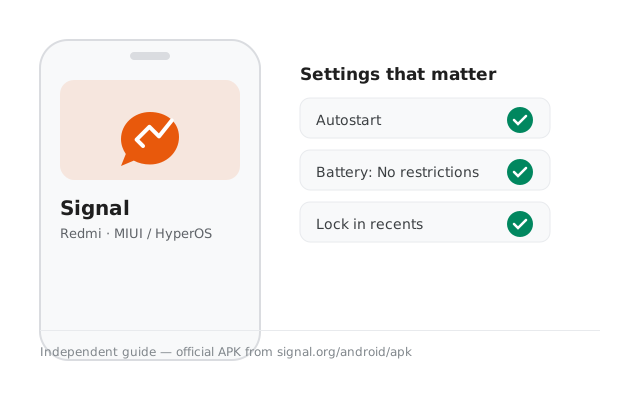
Why install the APK instead of the Play Store version?
Redmi phones ship with the Play Store in most markets, so this is a choice. The reasons people choose the APK:
- Self-updating without Google. The website build checks for updates itself. No Play account needed.
- Play Store problems. Broken Play services, account issues, or regional blocks all disappear with the direct APK.
- One file for everyone. No staged rollouts: signal.org serves the current build immediately.
- Clean reinstalls. The APK is the fastest path to a fresh install when troubleshooting.
The app itself is identical either way: same code, same encryption. And this guide already covers Poco too: Redmi and Poco share MIUI and HyperOS, so the steps and fixes on this page work on both brands with nothing extra to look up.
Install steps
-
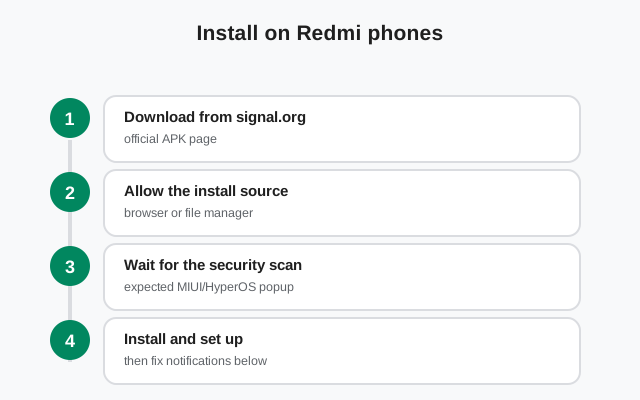
Download the official APK
Open signal.org/android/apk in your browser and download the file. Current website build: 8.29.3, package
org.thoughtcrime.securesms. -
Allow the install
Open the file; grant the unknown-app permission to your browser. MIUI and HyperOS paths below. Use the one matching your phone.
-
Verify the fingerprint
Before installing, compare Signal's published SHA-256 fingerprint with your file (how to verify).
-
Let the security scan run
MIUI/HyperOS scans the app during install (routine, explained below).
-
Install, open, register
Tap Install, then Open, then register your number.
Mi Browser (Xiaomi's default browser) shows its own download warning before APKs: the same generic "this type of file can harm your device" message every browser shows. It is not analyzing this file; it says it about all APKs. If you prefer, download with Chrome or Firefox instead; the permission grant simply goes to whichever browser you use. Either way, type signal.org/android/apk directly rather than searching. Search results for APK downloads attract copycat sites, and typing the address skips them entirely.
Storage check, mainly for the budget models (Poco X/M series and Redmi A series): some of these phones ship with 64GB, and a full phone causes the most confusing install failures: downloads that stall, installers that die silently. Keep at least 1GB free (Settings → About phone → Storage), clear app caches, or move media to an SD card before you start. The APK file must also sit on internal storage to install: if your browser saved it to the SD card, move it to internal Downloads first.
Download tip: turn off any browser data saver, turbo, or Lite mode before downloading the APK. Those modes route downloads through compression proxies that can corrupt binary files, and a corrupted APK either fails to install or looks fine while being broken. Download over your normal connection, and if a file ever finishes suspiciously fast or small, delete it and download again. The fingerprint check catches corruption anyway, but a clean download saves you the round trip.
Unknown-app permission: MIUI vs HyperOS on Redmi
Xiaomi renamed the settings between MIUI and HyperOS. Check yours at Settings → About phone, then use the matching path:
| Version | Permission path |
|---|---|
| MIUI 12–14 | Settings → Privacy protection → Special app access → Install unknown apps → your browser → Allow |
| HyperOS | Settings → Privacy & security → Special app access → Install unknown apps → your browser → Allow |
Opening the APK file first takes you to the right screen directly. Grant it to your browser only, and revoke it after installing if you like. Signal keeps working.
Redmi's software extras, briefly: Second Space creates a separate environment where your main-space apps do not exist. Install Signal in the space where you will use it. Dual apps can clone Signal for a second number, but clones have a weaker notification record; see our dual-apps guide before relying on one. Ultra battery saver suspends nearly everything including Signal, by design, so do not troubleshoot notifications while it is enabled. And Game Turbo may hold alerts during gaming; check its settings if messages only vanish mid-game. None of these affect a normal install. They only matter if you enabled them and forgot.
The security-scan popup (expected)
During install, MIUI/HyperOS runs its built-in security scan and shows a result screen before continuing. What it means, and does not mean:
- It runs for every sideloaded app. Routine system behavior, not a verdict on Signal.
- "No risks found" is the normal result for the genuine APK.
- Play Protect may add its own notice about unknown sources, which is also routine. Our Play Protect guide explains its messages.
Install because the fingerprint matched. That match is the proof, not the scan's friendly look. If a scan ever flags the file, delete it and re-download from the official page.
One more MIUI/HyperOS reality check: after a system update, Xiaomi occasionally resets per-app battery settings to defaults. If notifications worked for months and suddenly degraded right after a HyperOS update, revisit the checklist above before anything else. The update moved your settings, not Signal. Similarly, the Security app's "Boost speed" / cleaner can kill background apps when run manually; exclude Signal from its cleaning routines (Security app → settings → exceptions) so a routine cleanup does not silence your messenger.
Notification survival kit for Redmi
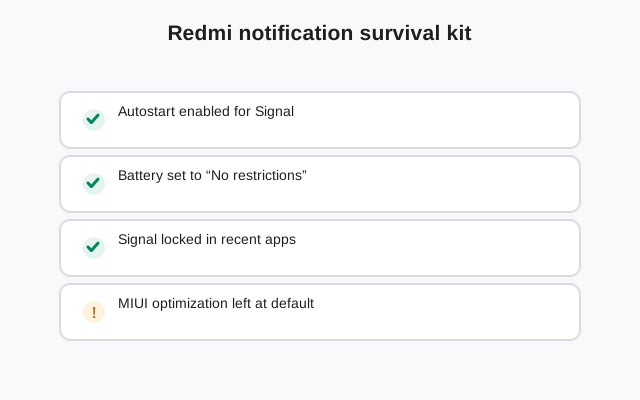
MIUI and HyperOS are among the strictest skins about background apps, so do not skip this. In order:
- No restrictions on battery. Settings → Battery → App battery saver → Signal → No restrictions. (MIUI: Settings → Battery & performance → App battery saver.)
- Autostart enabled. Settings → Apps → Autostart (or the Security app → Autostart): turn it on for Signal so reboots do not leave it frozen.
- Lock in recents. Open recent apps, find Signal's card, and lock it so it is not swiped away.
- Notifications allowed. Settings → Notifications & Control center (MIUI) or Notifications & status bar (HyperOS) → Signal: allowed, with sound.
Then the screen-off five-minute test. Still delayed? Our Xiaomi-family notification guide covers Redmi-specific corners, and the general troubleshooting page covers everything else.
If the Play Store version is already installed
The website APK cannot install over the Play Store build. The signing keys differ, so Android says "App not installed." The clean switch:
- Enable Secure Backups and save your recovery key.
- Uninstall the Play Store version of Signal.
- Install the APK, register the same number, restore during setup.
Read the build-switching checklist first. Every other install failure is covered in the install-error guide.
Redmi Pad owners: the same APK installs on Xiaomi's tablets. Signal's Android app adapts to large screens, though SMS registration needs a number that can receive texts (use your phone's number via a linked setup instead). See our tablet install guide for the linked-vs-standalone decision. And a final reassurance: nothing here requires a Xiaomi account, MIUI+ / HyperOS Connect pairing, or any Xiaomi service. The website build is fully independent. Download, verify, install, register: no accounts beyond your phone number.
Updates, verification and registration
- Updates: the website build updates itself (APK update guide, latest-version page).
- Verification: SHA-256 fingerprint on signal.org/android/apk, character by character (full guide); then verify the install.
- Registration: number → SMS code (or voice call) → profile → PIN. SMS troubleshooting.
- First run: first-run guide, security checklist, permissions guide.
- New phone: transfer walkthrough: back up before wiping the old device.
Frequently asked questions
Does the Signal APK work on Redmi Note phones?
Yes. Redmi Note, Redmi number series, and Redmi K series all run MIUI or HyperOS on standard Android, and the same official APK installs on all of them. There is no per-model build; it is one universal APK.
MIUI's scan says ‘install anyway’. Is that safe?
The ‘install anyway’ phrasing is MIUI's standard wording for any sideload after its routine scan, not a danger warning about Signal. It is safe to proceed because you verified the fingerprint, which is the actual proof of authenticity.
Why do notifications stop after I reboot my Redmi?
Autostart is off. MIUI/HyperOS does not restart frozen apps after a reboot unless autostart is enabled for them. Turn it on for Signal under Settings → Apps → Autostart and the problem goes away.
Can I use GetApps (Xiaomi's store) instead of sideloading?
You can check it, but verify the developer name (Signal Foundation) on any store listing. You still do not need it, since the website build updates itself. The direct APK remains the cleanest route.
Will the APK work on older MIUI versions?
Yes, as long as the underlying Android version is supported by current Signal builds. Very old Redmi phones should check our old-Android support notes first.
Will the APK work on Redmi A-series phones?
Generally yes, with a caveat: A-series phones run Android Go edition with 2–3GB of RAM. Signal installs and runs, but low-memory phones may kill background apps more aggressively. Apply the notification survival kit above carefully, and keep expectations modest on decade-old hardware. Check our old-Android support notes if your Android version is very old.
GetApps keeps offering to ‘update’ my sideloaded Signal. Should I let it?
No. GetApps would try to install its own build over the website build, and the signing keys differ. The update fails or, worse, confuses the install state. Dismiss those prompts and let the website build update itself, which it does reliably without any store.
Next steps: download from the official Signal APK page.